





✓ Step-by-step guide
Install IPTV Smarters Pro
on Windows PC
Follow these steps to get IPTV Nords running on your Windows PC with IPTV Smarters Pro.
1
Download IPTV Smarters Pro for Windows
How to do it:
- Click on the link below to download the app
- Go to your Downloads folder — click on the file IPTVSmartersProSetup to start the installation
2
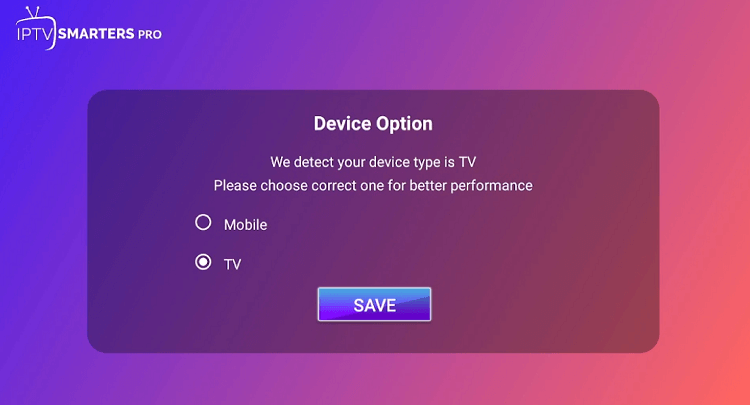
Launch IPTV Smarters Pro and Add User
Open the app and click Add User to import your IPTV Nords subscription.
How to do it:
- Open IPTV Smarters Pro from your Windows Start menu
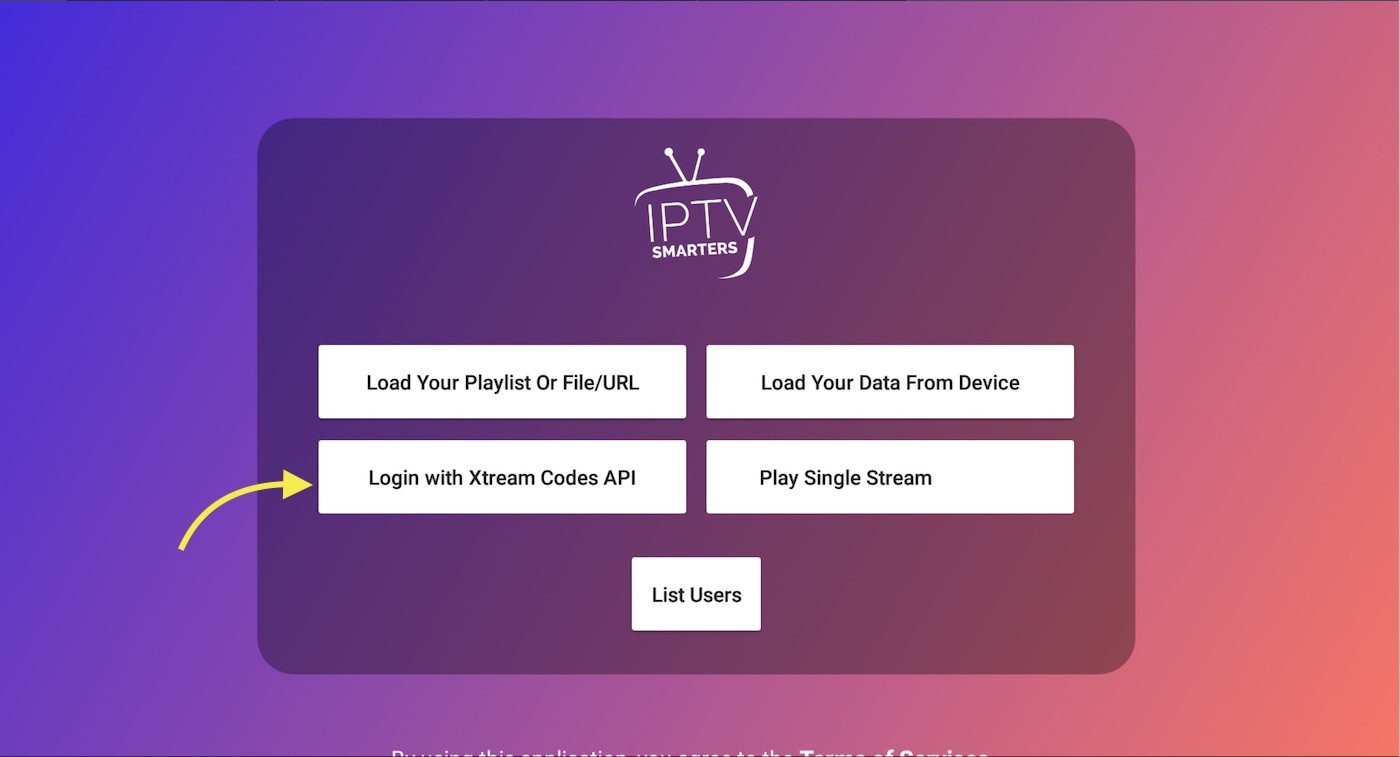
- Click Add User on the welcome screen
- Select Login with Xtream Codes API
3
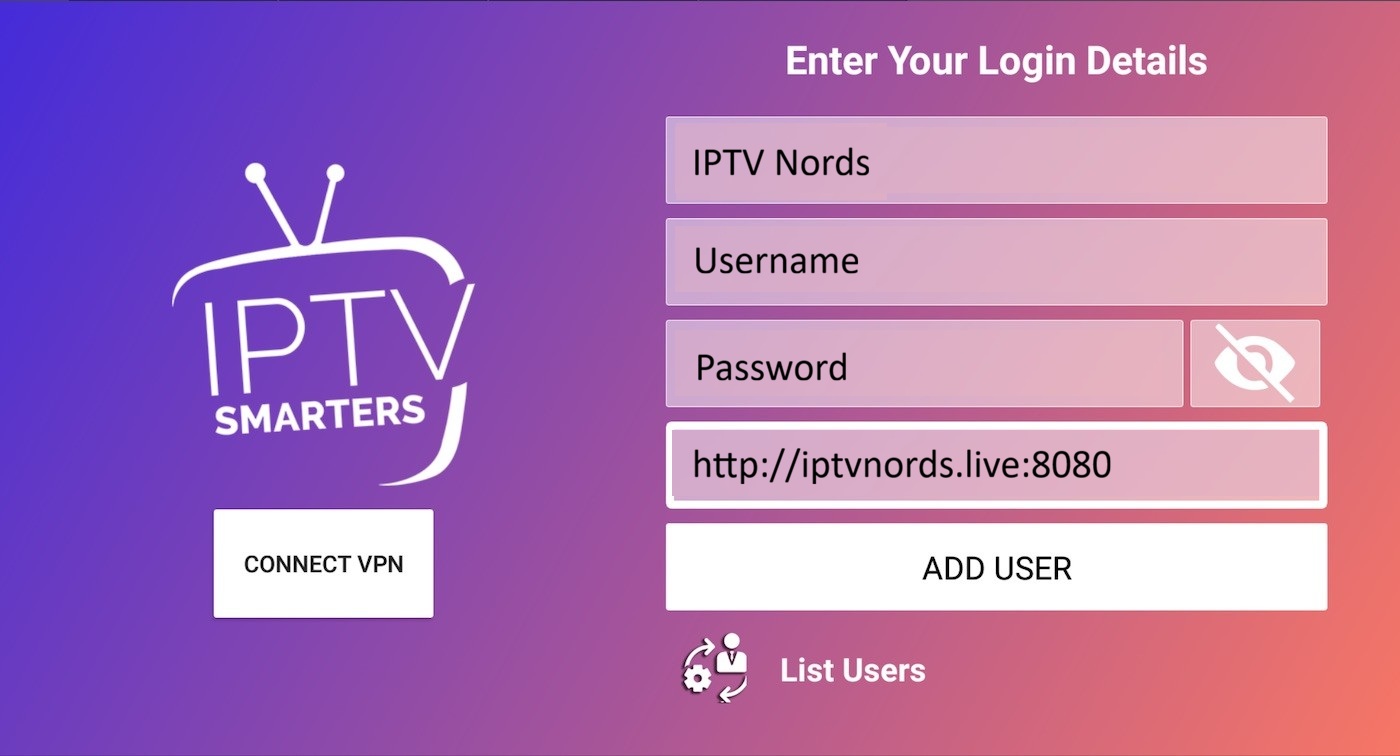
Enter Your IPTV Nords Credentials
Enter your playlist name, username, password and server URL from your IPTV Nords welcome email. Keep these details private.
How to do it:
- In Playlist Name type: IPTV Nords
- In Username enter your username
- In Password enter your password
- In Server URL enter: http://iptvnords.live:8080
- Click Add User — channels load in 10–30 seconds
📧 Your credentials are in your IPTV Nords welcome email. Contact live chat if you need them resent.
4
Browse Channels and Watch in Full Screen
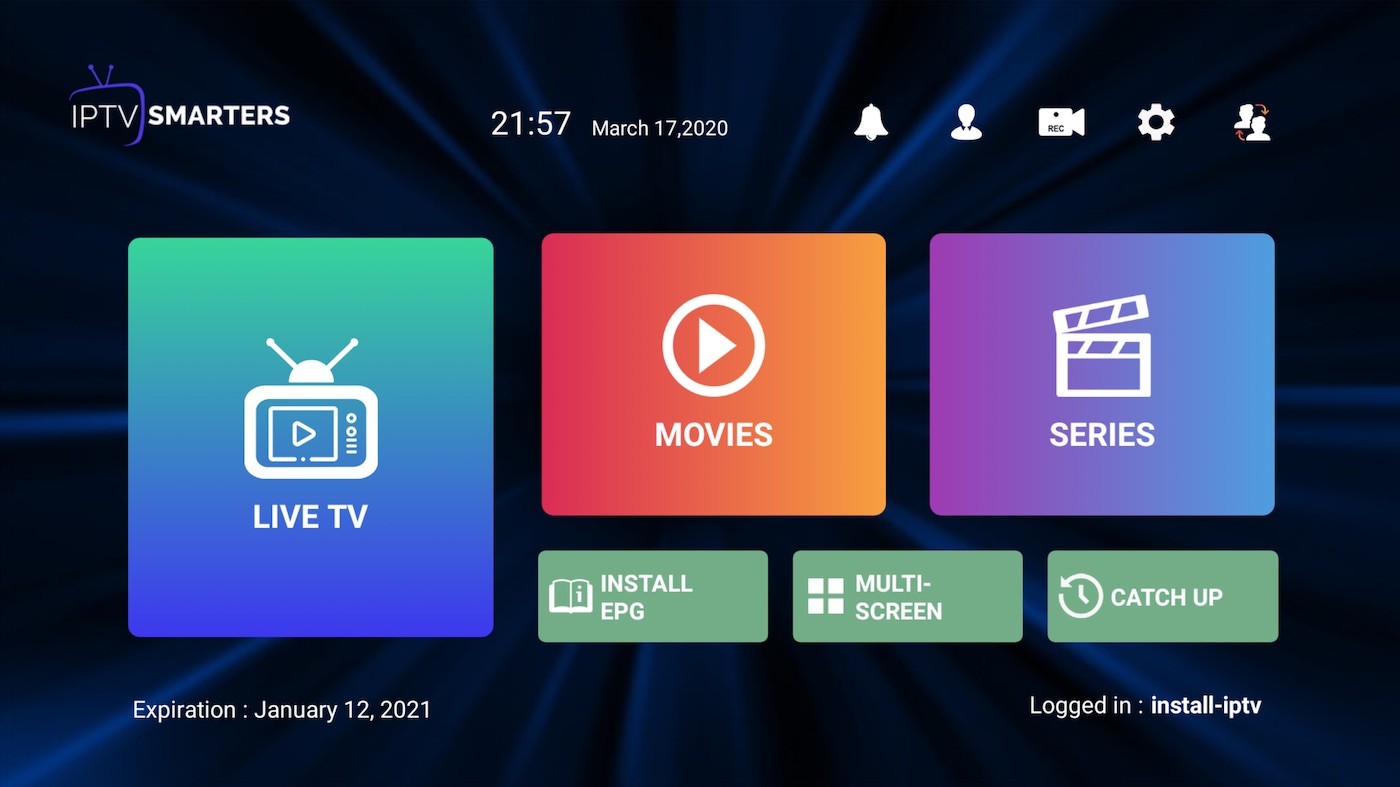
All your channels are loaded. Use the navigation bar to switch between Live TV, Movies and Series.
How to do it:
- Click Live TV to browse channels by category
- Click Movies or Series for on-demand content
- Click the EPG button for the programme guide
- Press F11 or click the full-screen button for the best viewing experience
💡 For best quality set stream to HD or FHD. Our servers support up to 4K on compatible devices.