





✓ Step-by-step guide
Install TiviMate IPTV Player
on Android TV Box
Follow these steps to get IPTV Nords running on your Android TV Box with TiviMate IPTV Player.
1
Install TiviMate from Google Play Store
TiviMate is available on the Google Play Store for all Android TV boxes including Nvidia Shield, Formuler, Mi Box and more.
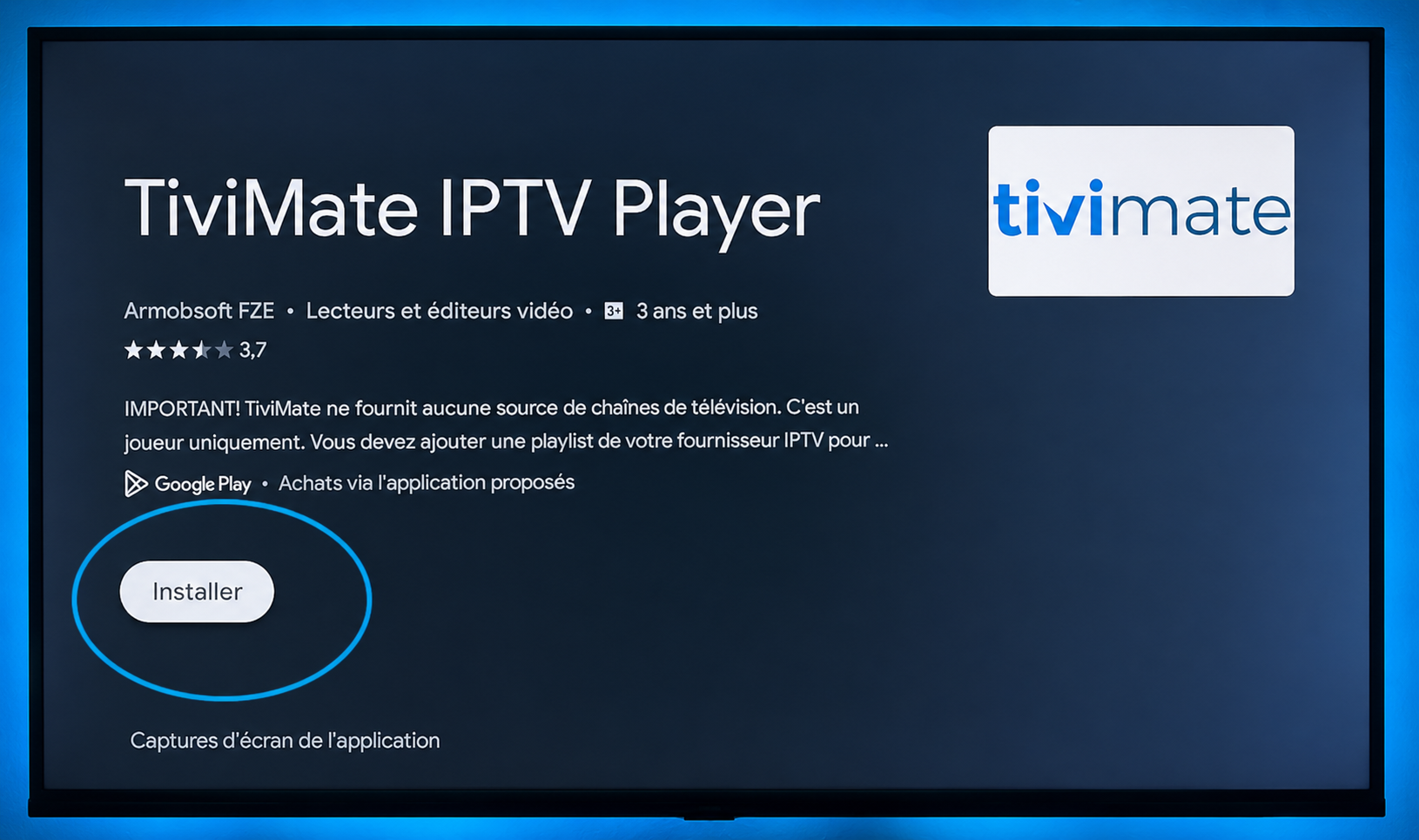
How to do it:
- Open Google Play Store on your Android TV Box
- Search for TiviMate IPTV Player
- Tap Install — the base app is free
- Open TiviMate once installed
2
Add Your IPTV Nords Playlist
TiviMate supports M3U playlist URL and Xtream Codes. Tap Add Playlist on the welcome screen.
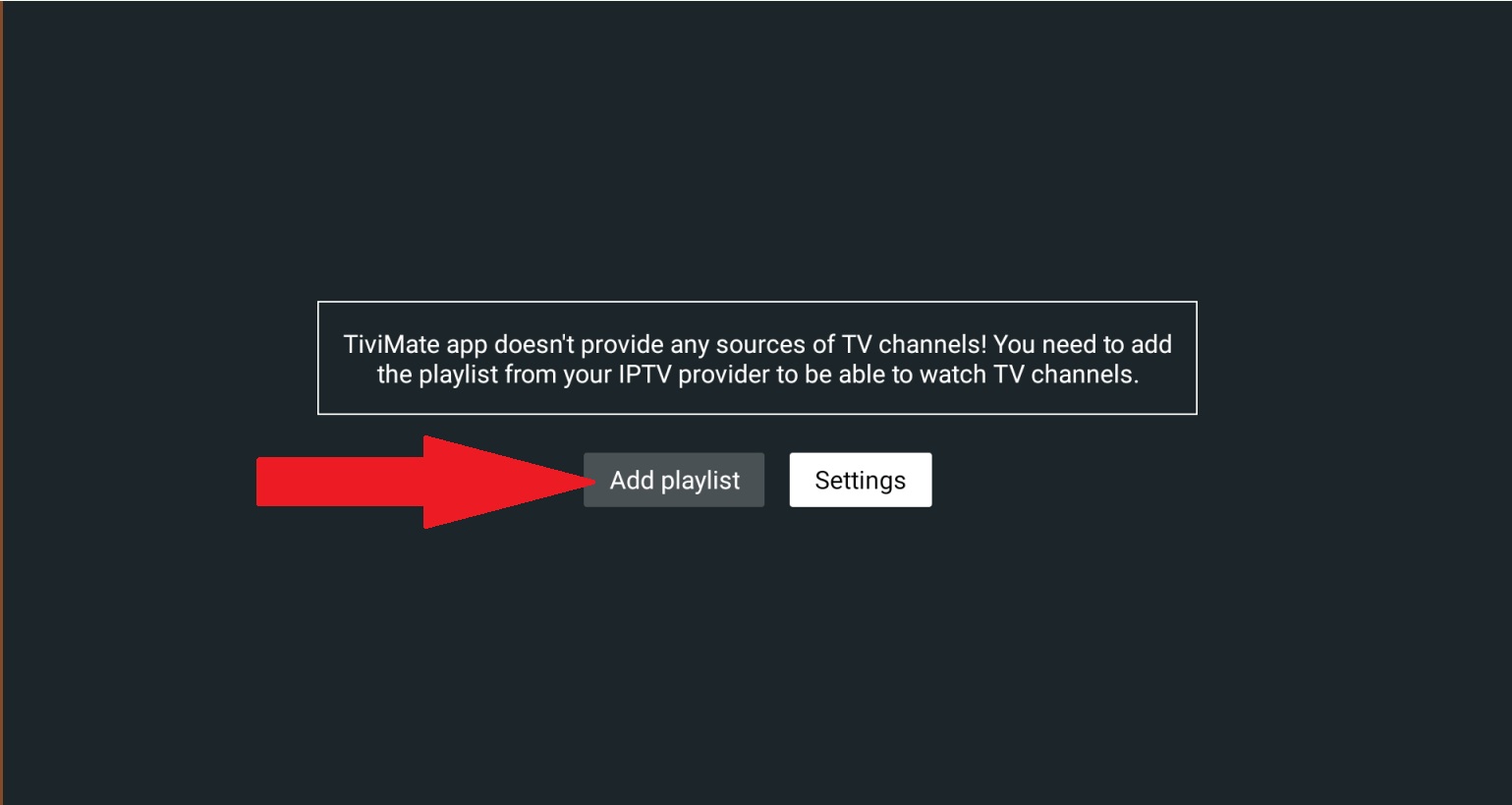
How to do it:
- Open TiviMate
- Tap Add Playlist on the welcome screen
- Select Xtream Codes API for login
3
Enter Your IPTV Nords XTREAM API Credentials
Paste your M3U URL from your IPTV Nords welcome email. TiviMate also supports Xtream Codes login.
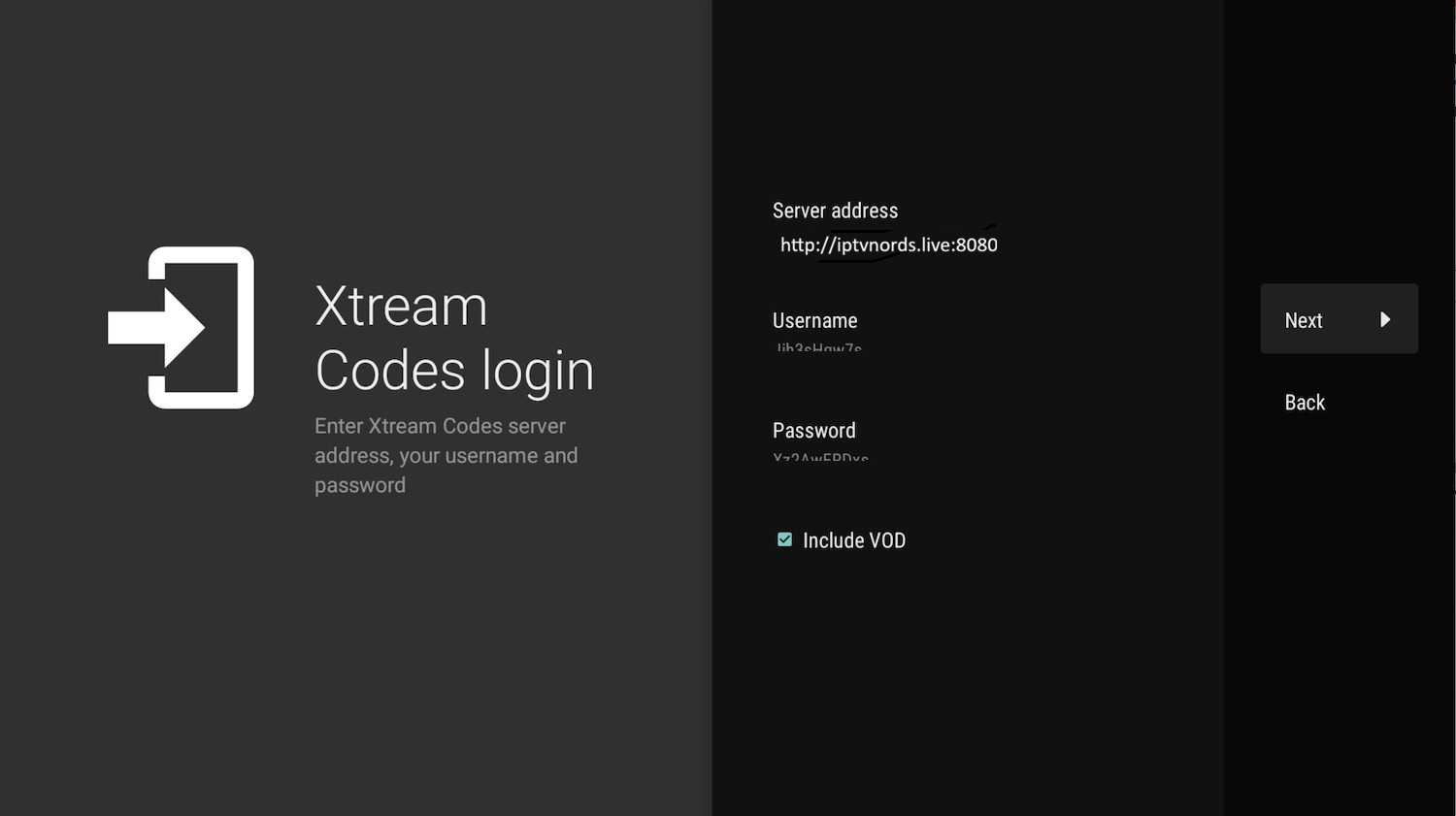
How to do it:
- Paste your IPTV Nords XTREAM CODES Credentials in the URL field:
Server address: http://iptvnords.live:8080
Username: your_username
Password: your_password
Playlist name: IPTV NORDS
Username: your_username
Password: your_password
Playlist name: IPTV NORDS
📧 Your Credentials are in your IPTV Nords welcome email. Contact live chat if you need it resent.
4
Browse with the Full EPG Grid
TiviMate loads all your channels with a beautiful TV guide. Navigate with your Android Box remote.
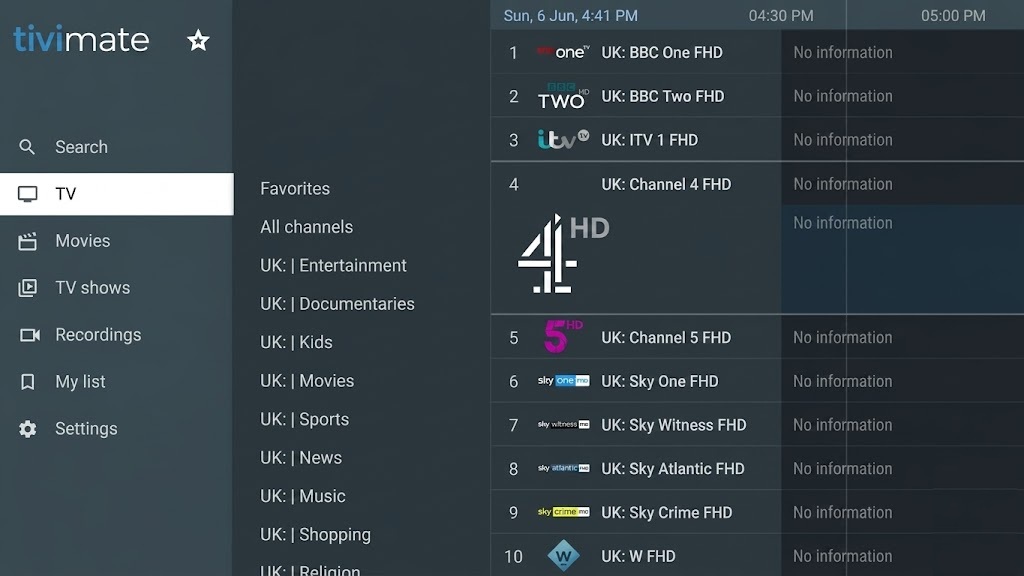
How to do it:
- Navigate to Live TV to browse all channels
- Press the Guide button for the full EPG programme grid
- Long-press any channel to add it to Favourites
- Go to Settings → Catch-up to enable replay of missed content
💡 Upgrade to TiviMate Premium to enable multiple playlists, recordings and additional settings.