





✓ Step-by-step guide
Install IBO Pro Player TV
on Amazon Firestick
Follow these 5 simple steps to get IPTV Nords running on your Amazon Firestick with IBO Pro Player TV.
1
Enable Apps from Unknown Sources
Before installing IBO Pro Player TV, you need to allow your Firestick to install apps from outside the Amazon store.
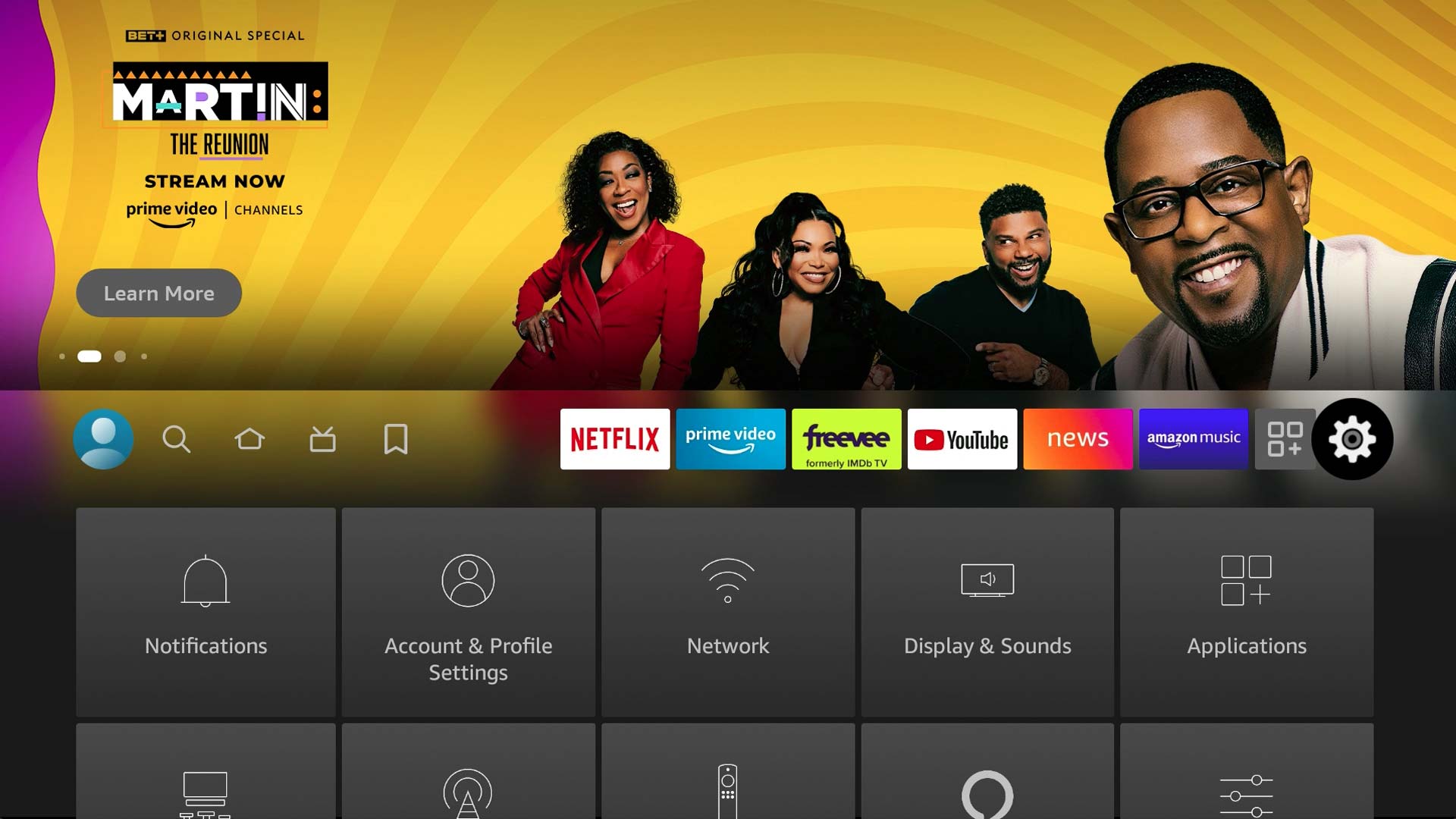
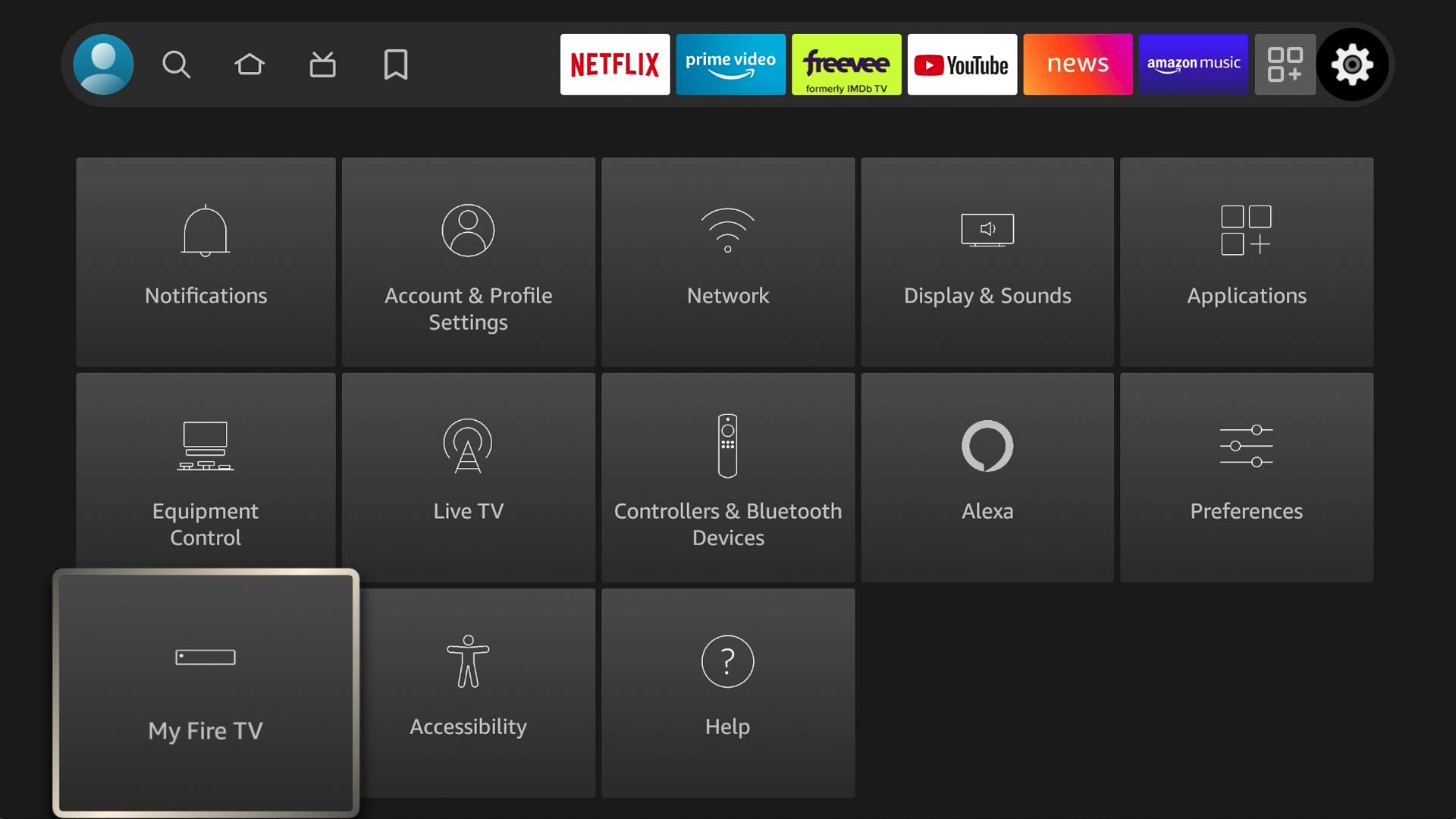
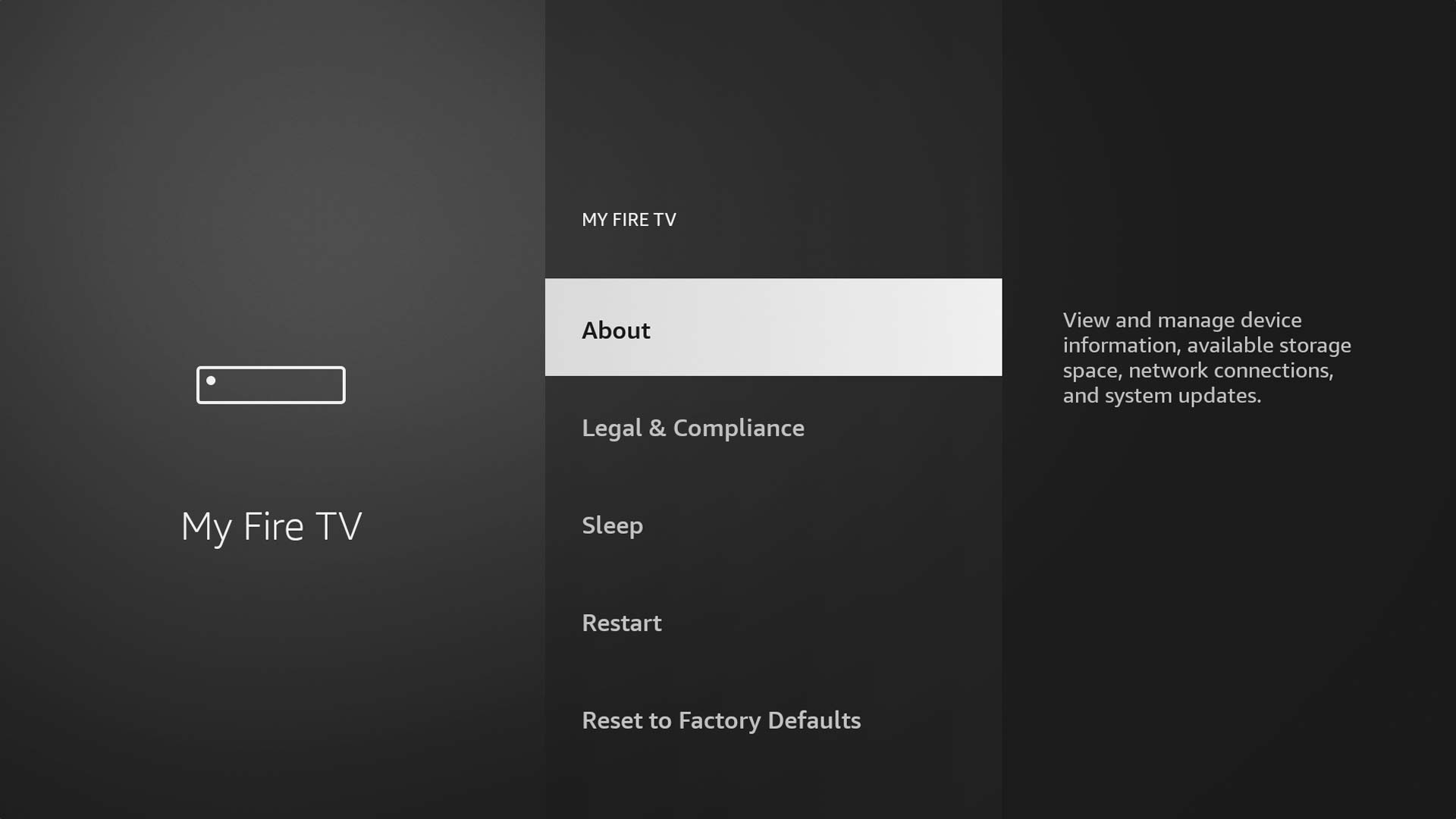
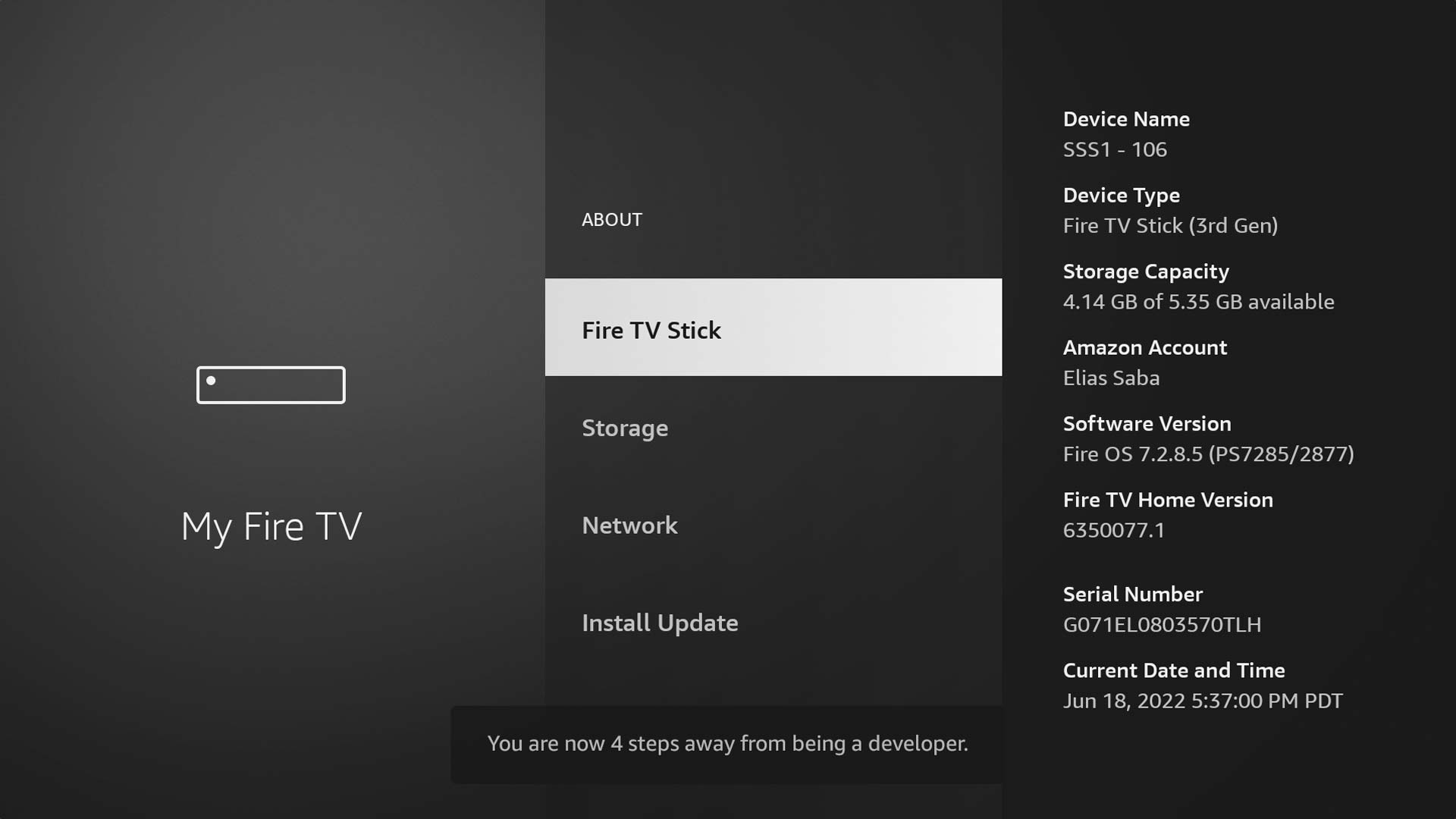
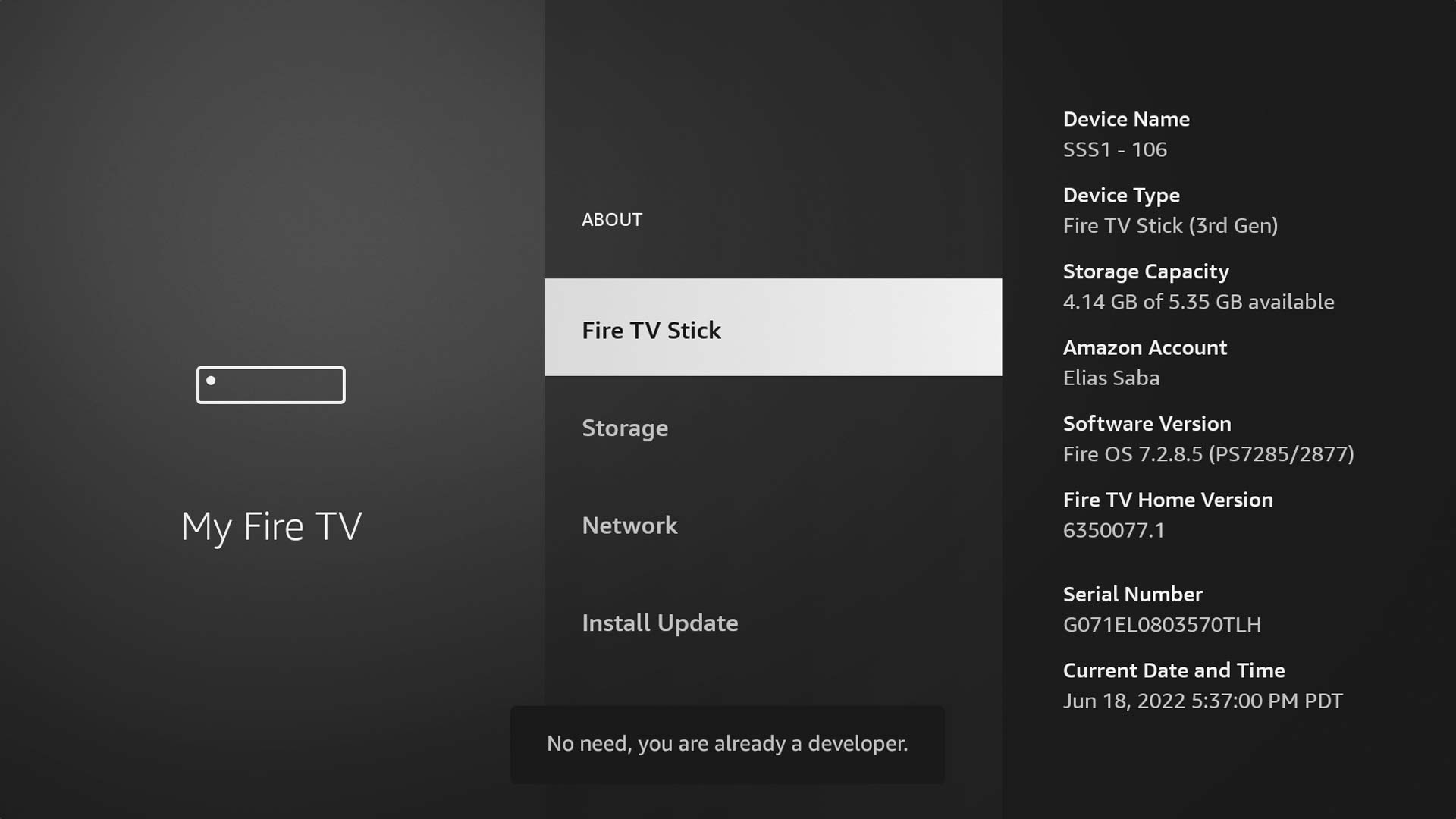
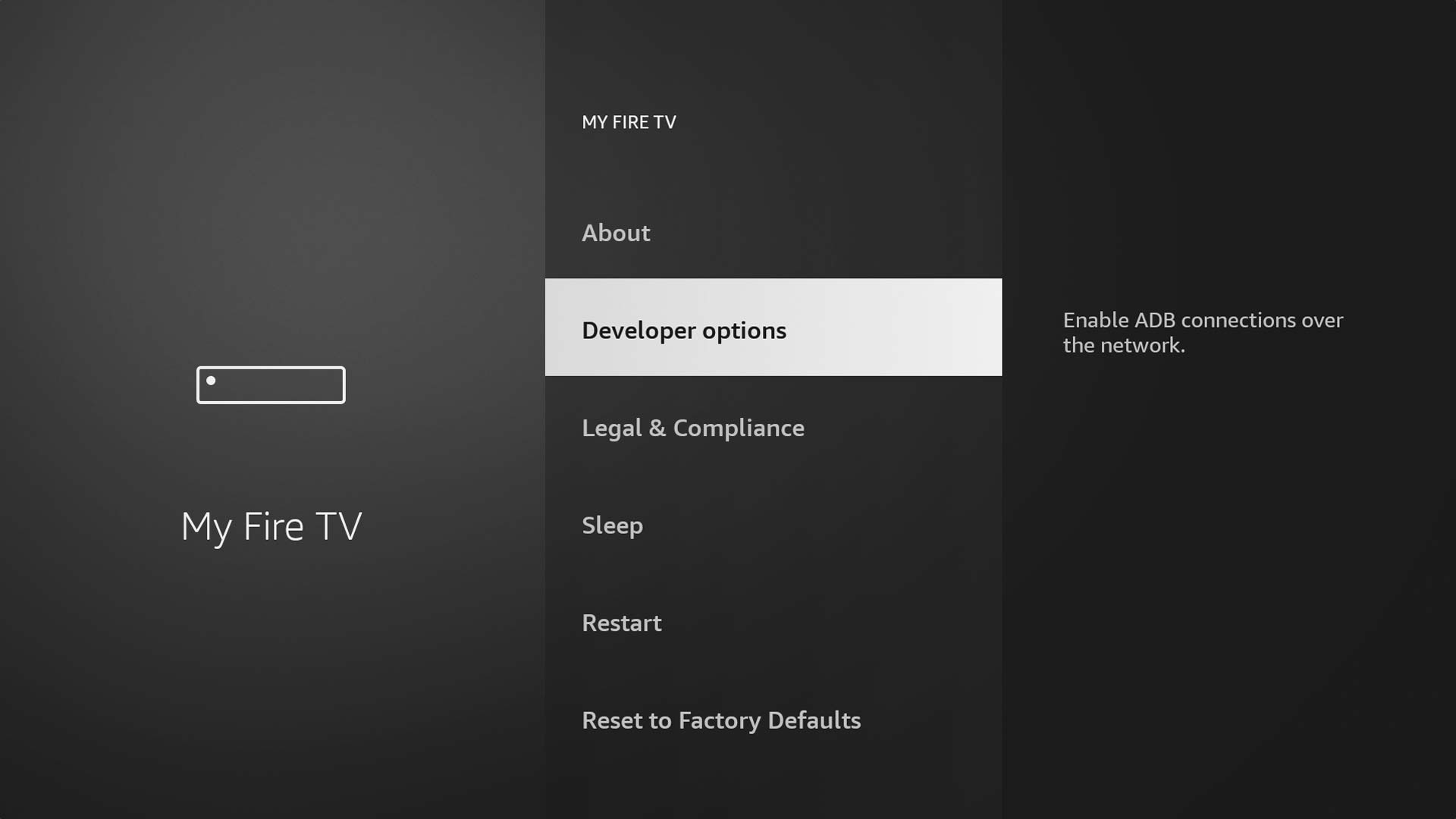
How to do it:
- Go to Settings on your Firestick home screen
- Select My Fire TV
- Tap Developer Options
- Toggle Apps from Unknown Sources to ON and confirm
💡 On older models this may be under Settings → Device → Developer Options.
2
Install the Downloader App
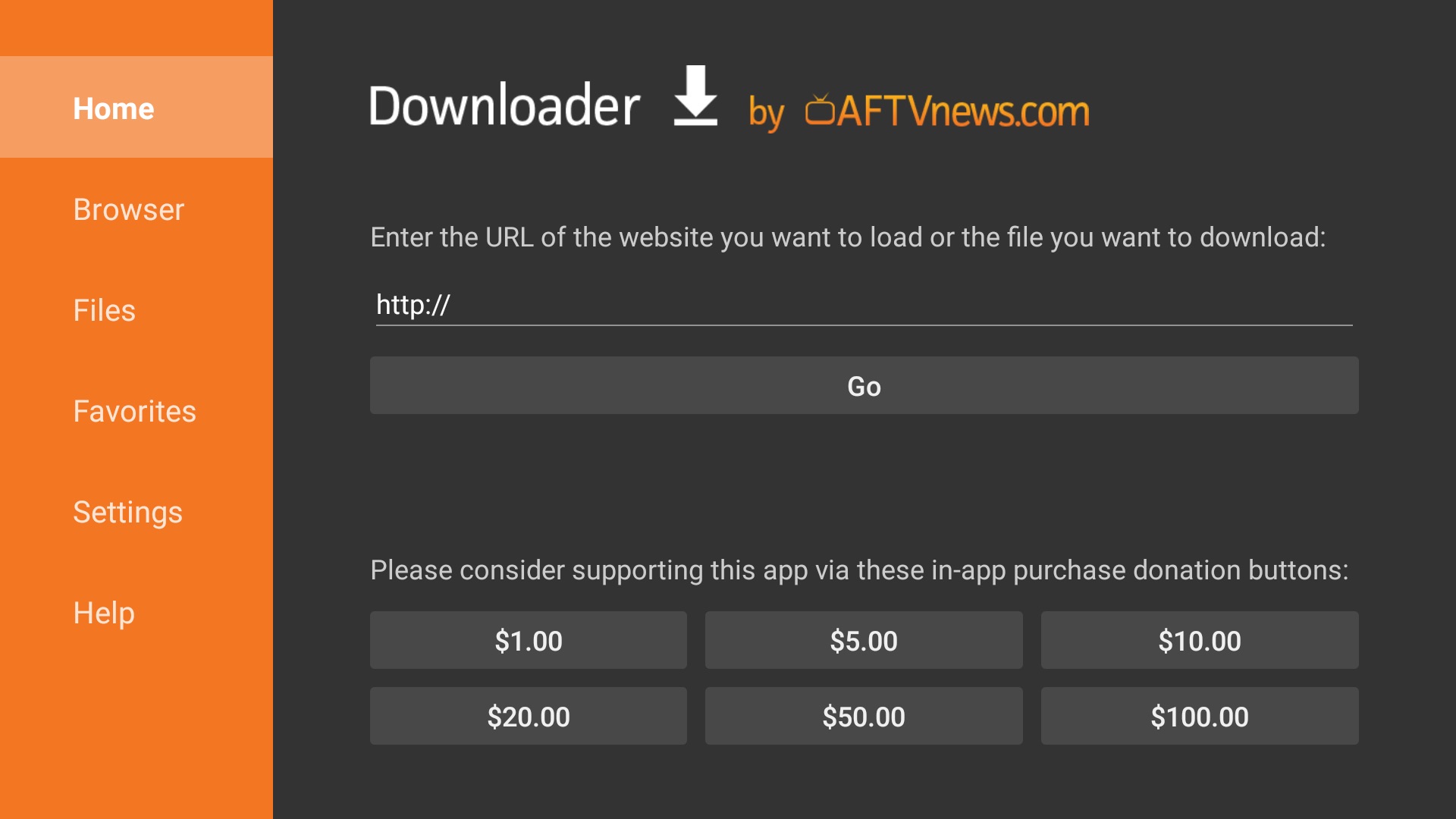
The Downloader app lets you install APK files directly on your Firestick. It's free and available in the Amazon App Store.
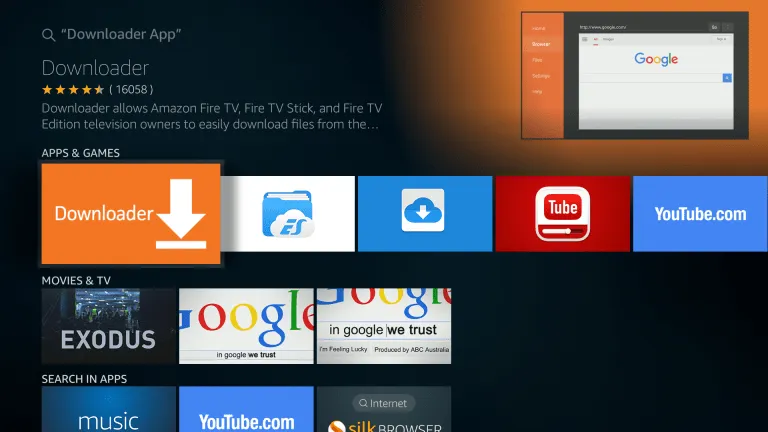
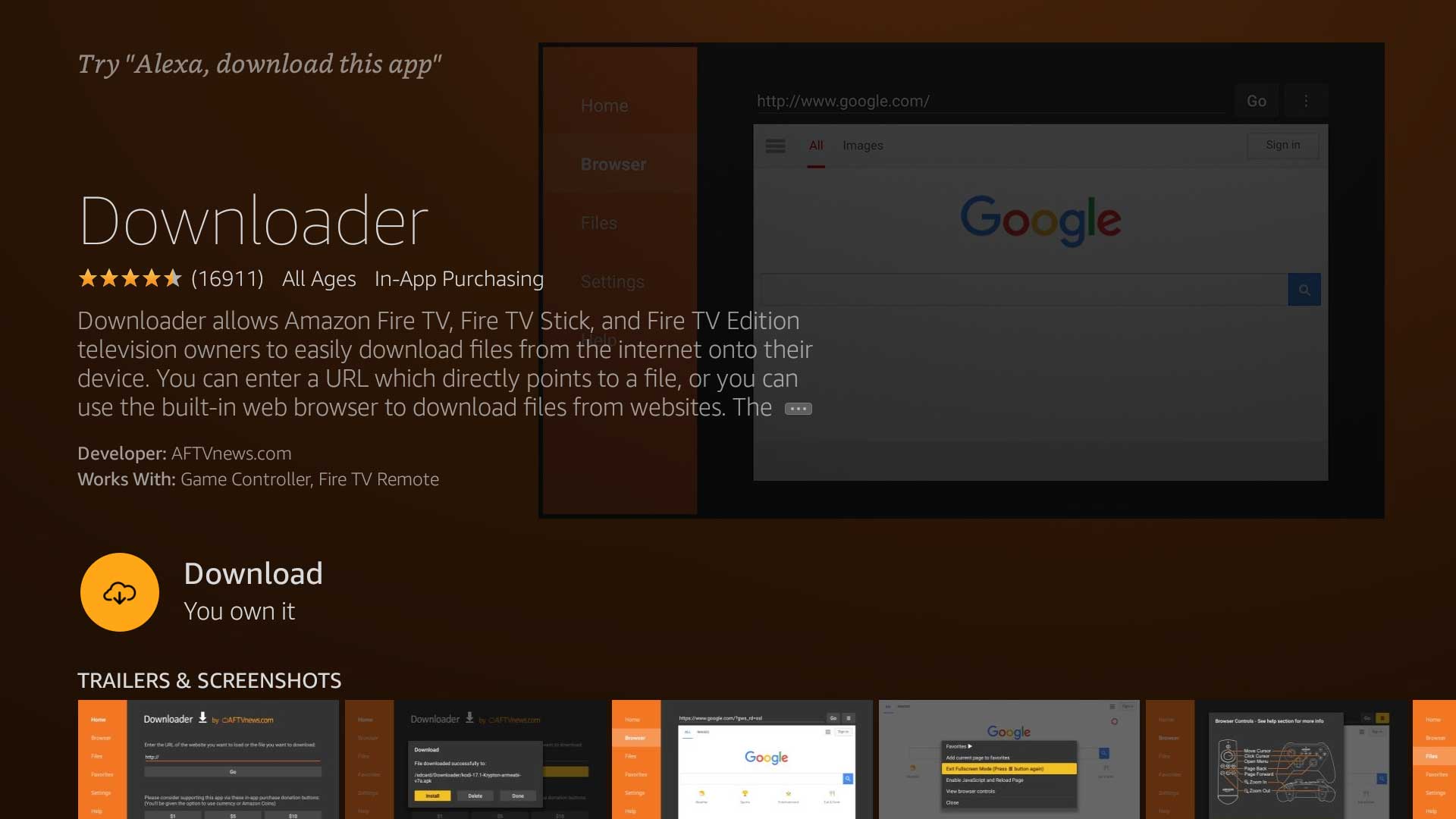
How to do it:
- From the home screen tap the Search icon (🔍)
- Type Downloader and select the orange Downloader app
- Tap Get or Download — it is free
- Once installed, open the Downloader app
3
Download & Install IBO Pro Player TV APK
Use Downloader to fetch and install the official IBO Pro Player TV APK onto your Firestick.
How to do it:
- Open Downloader
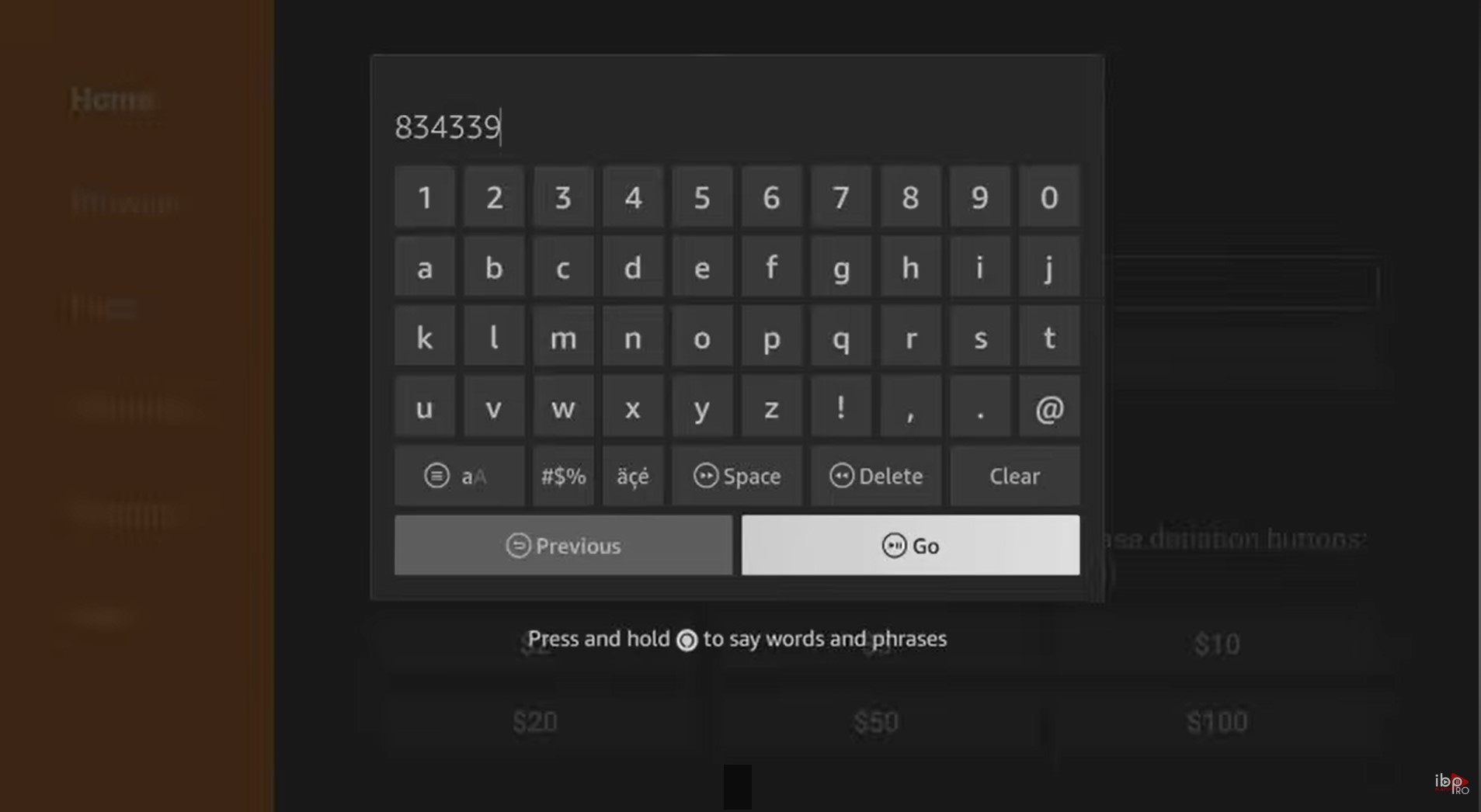
- In the URL bar type 834339 and press Go
- On the site tap the Fire TV / FireStick download button
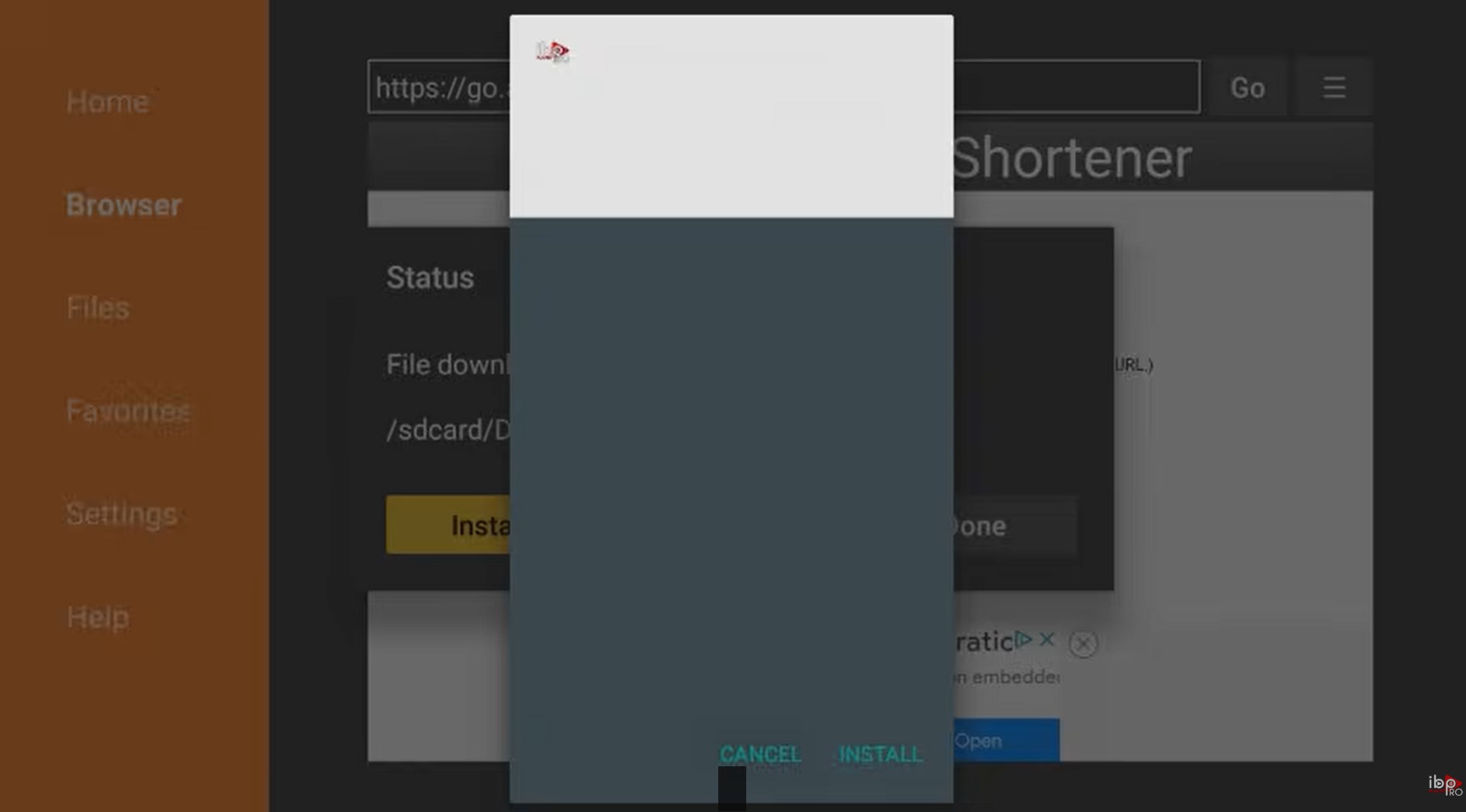
- When the download completes tap Install on the prompt
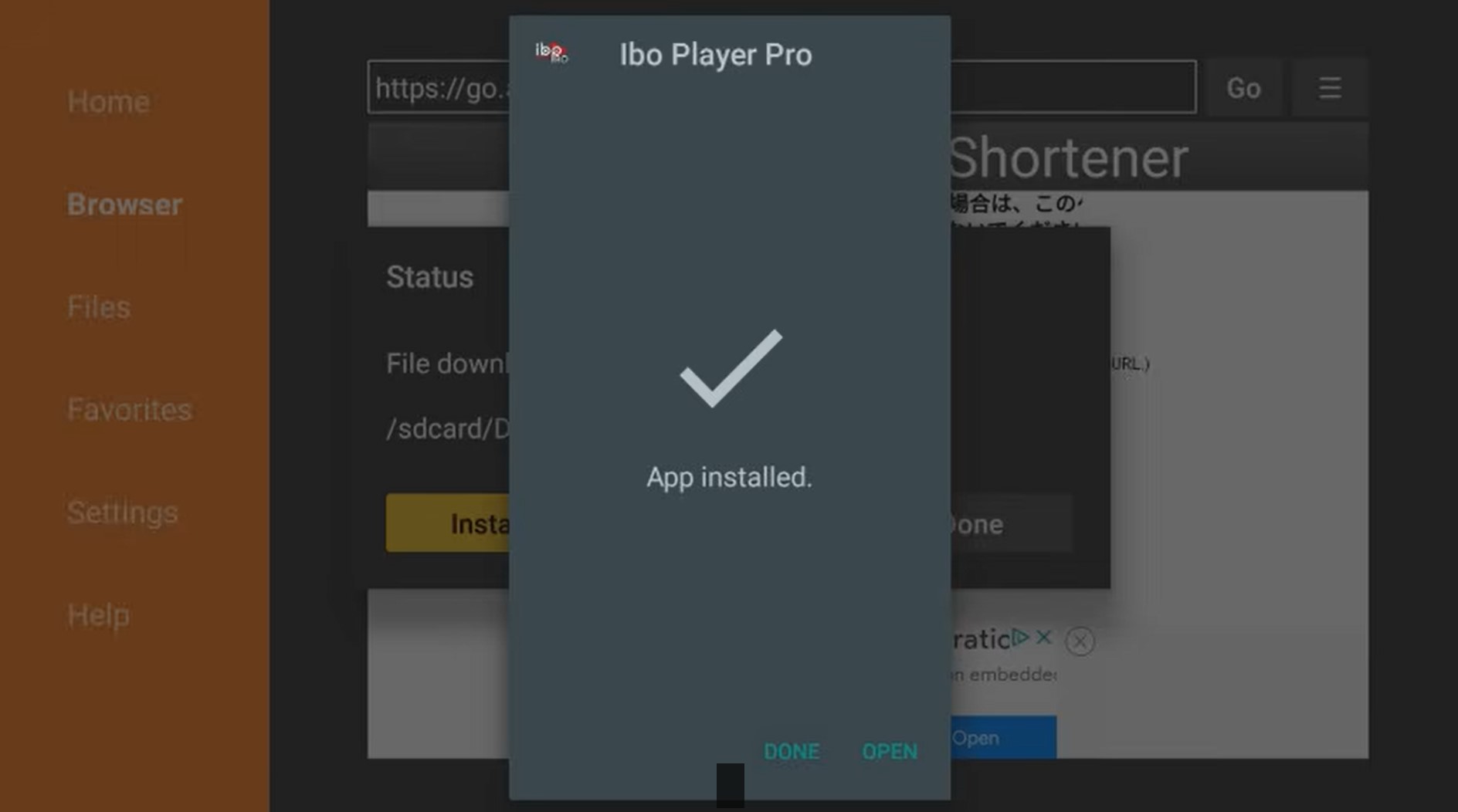
- Tap Done (not Open — we do that next)
⚠️ Only download APKs from official sources. Avoid third-party APK sites to stay safe.
4
Upload Your Playlist via the IBO Website
Open IBO Pro Player TV to get your MAC address and Device Key, then log in to the IBO website to add your IPTV Nords M3U playlist.
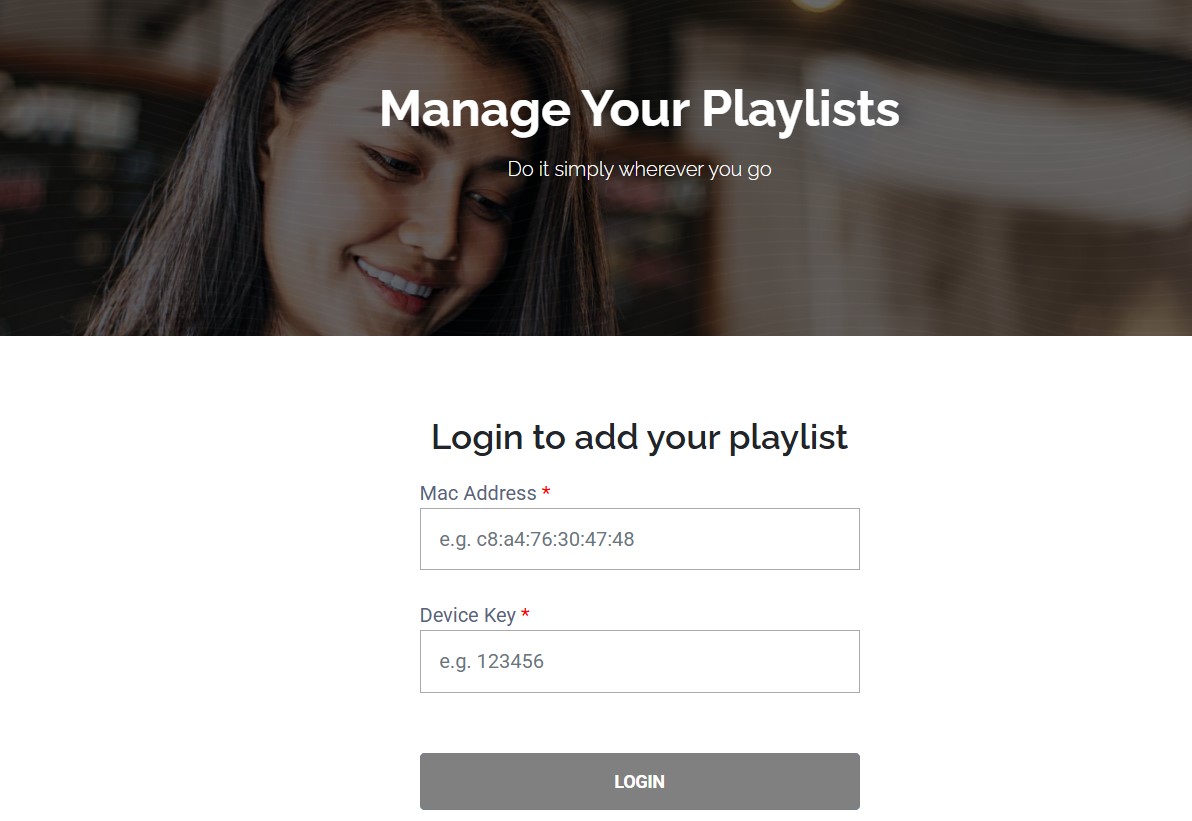
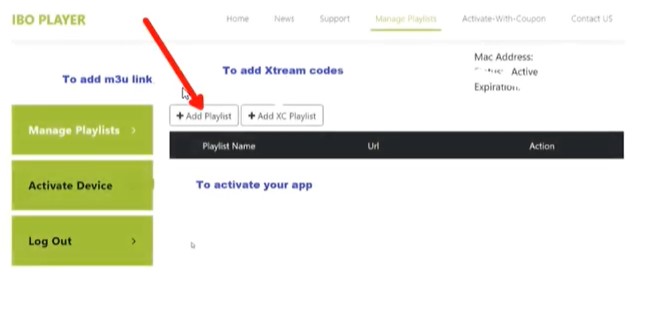
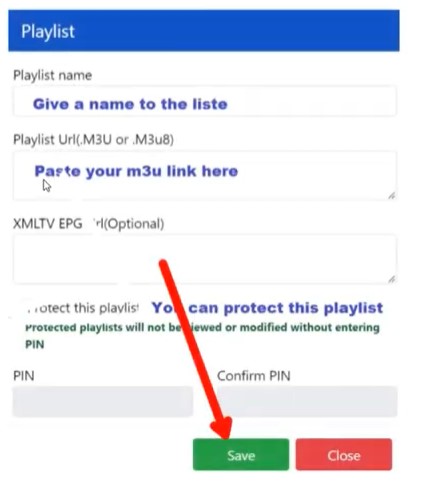
How to do it:
- Open IBO Pro Player TV on your Firestick to see your MAC Address and Device Key
- On a phone or computer go to iboiptv.com/device/login
- Enter your MAC Address and Device Key
- Complete the Captcha and tap Login
- After login confirm your MAC Address again and tap Login
- Select Add Playlist
- Enter a Playlist name and your IPTV Nords M3U URL from your welcome email, then tap Save
📧 Your M3U URL is in your IPTV Nords welcome email. Contact live chat if you need it resent.
5
Browse Channels with VLC / ExoPlayer
IBO Pro Player TV uses VLC and ExoPlayer engines for smooth 4K playback across all your channels.
How to do it:
- Tap any channel to start watching
- Switch between VLC Player and ExoPlayer in settings for best quality
- Use Search to find channels fast
- Long-press any channel to add to Favourites
💡 For best quality set stream to HD or FHD. Our servers support up to 4K on compatible devices.