





Install Blink Player Lite
on Firestick
Follow these 5 steps to get IPTV Nords running on your Amazon Firestick with Blink Player Lite. Since Blink Player Lite is not on the Amazon App Store it is installed via APK — the process takes around 8 minutes.
Blink Player Lite is not available on the Amazon App Store, so it must be sideloaded via APK. You first need to allow your Firestick to install apps from outside the Amazon store.
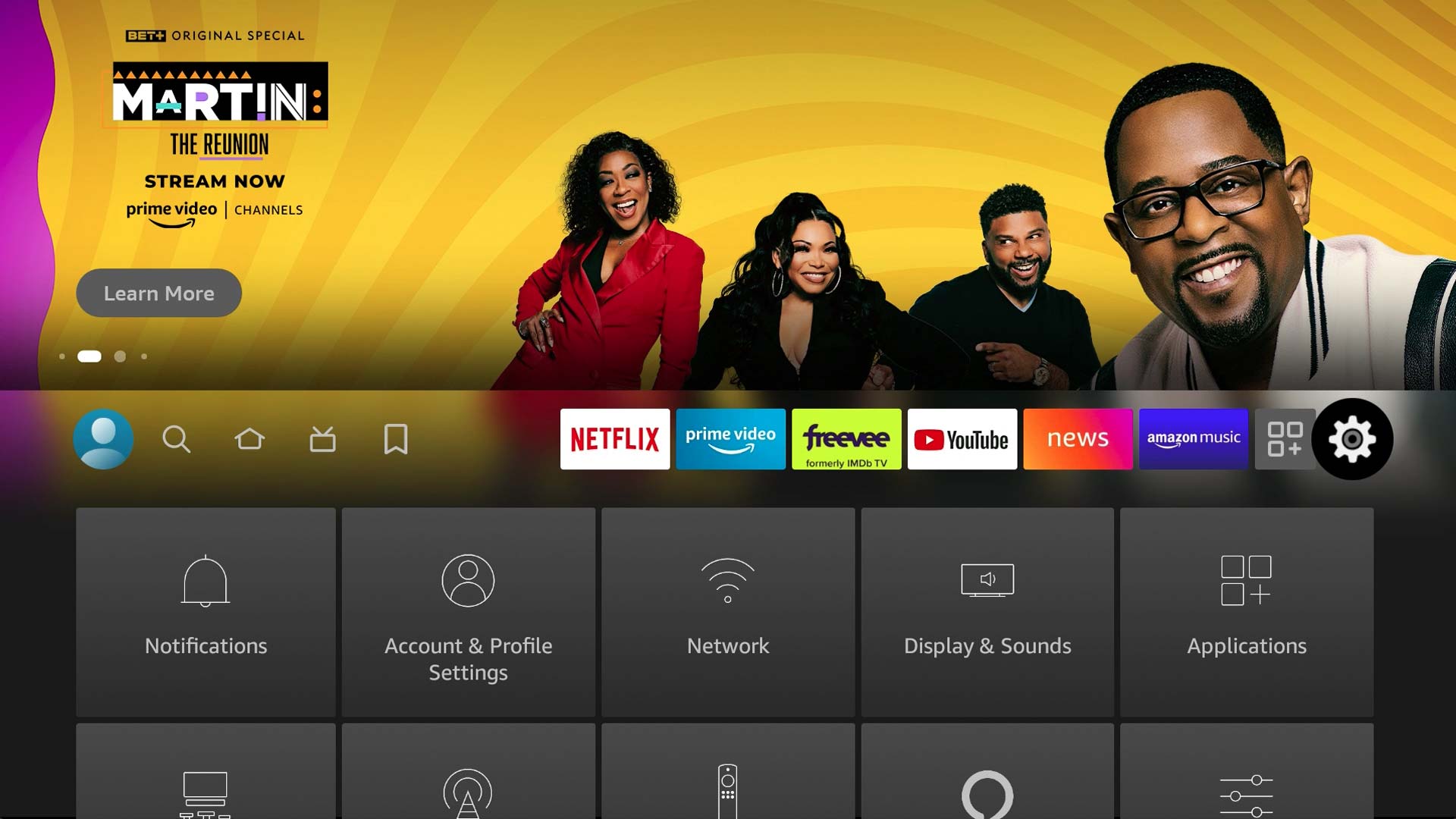
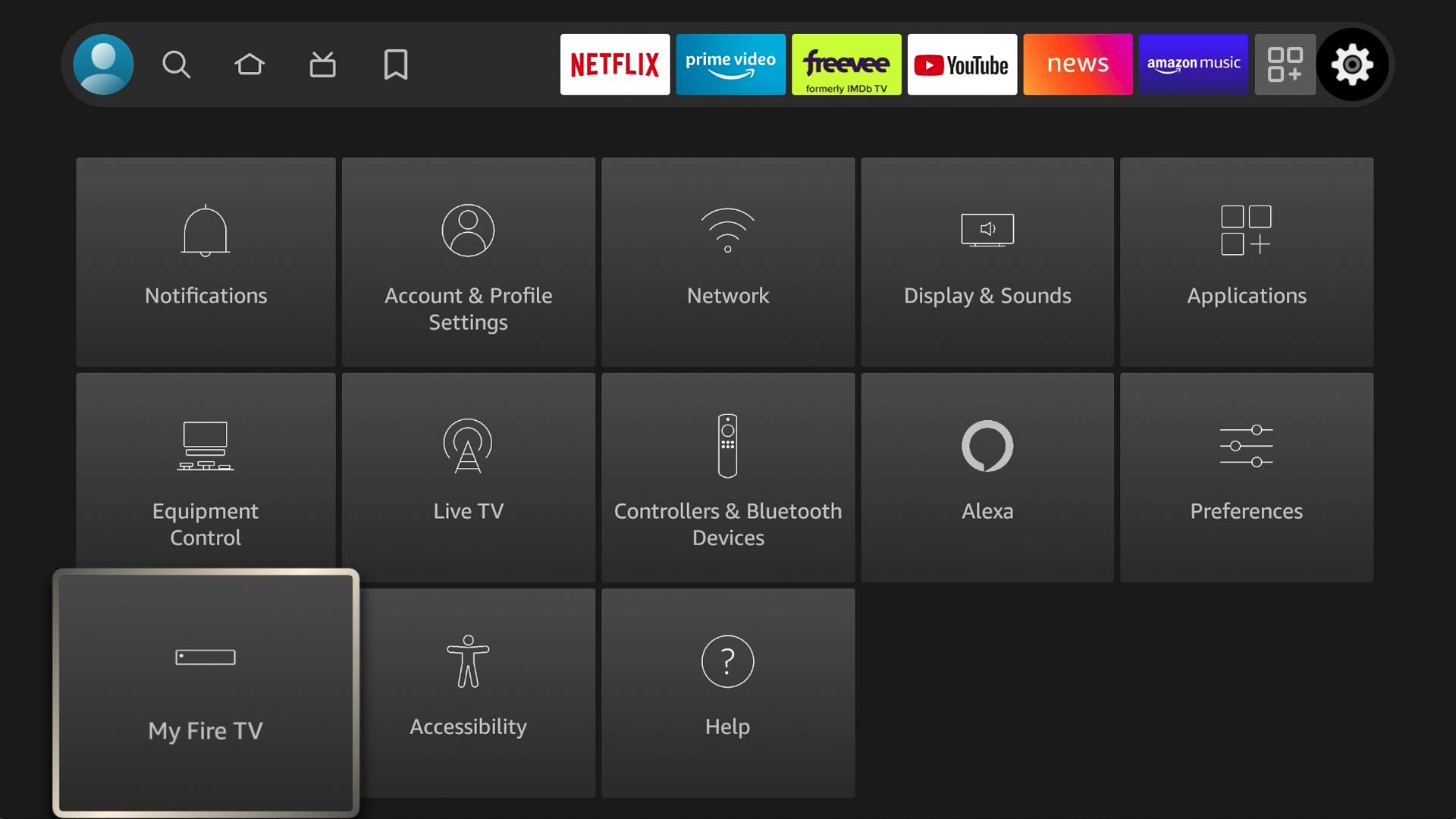
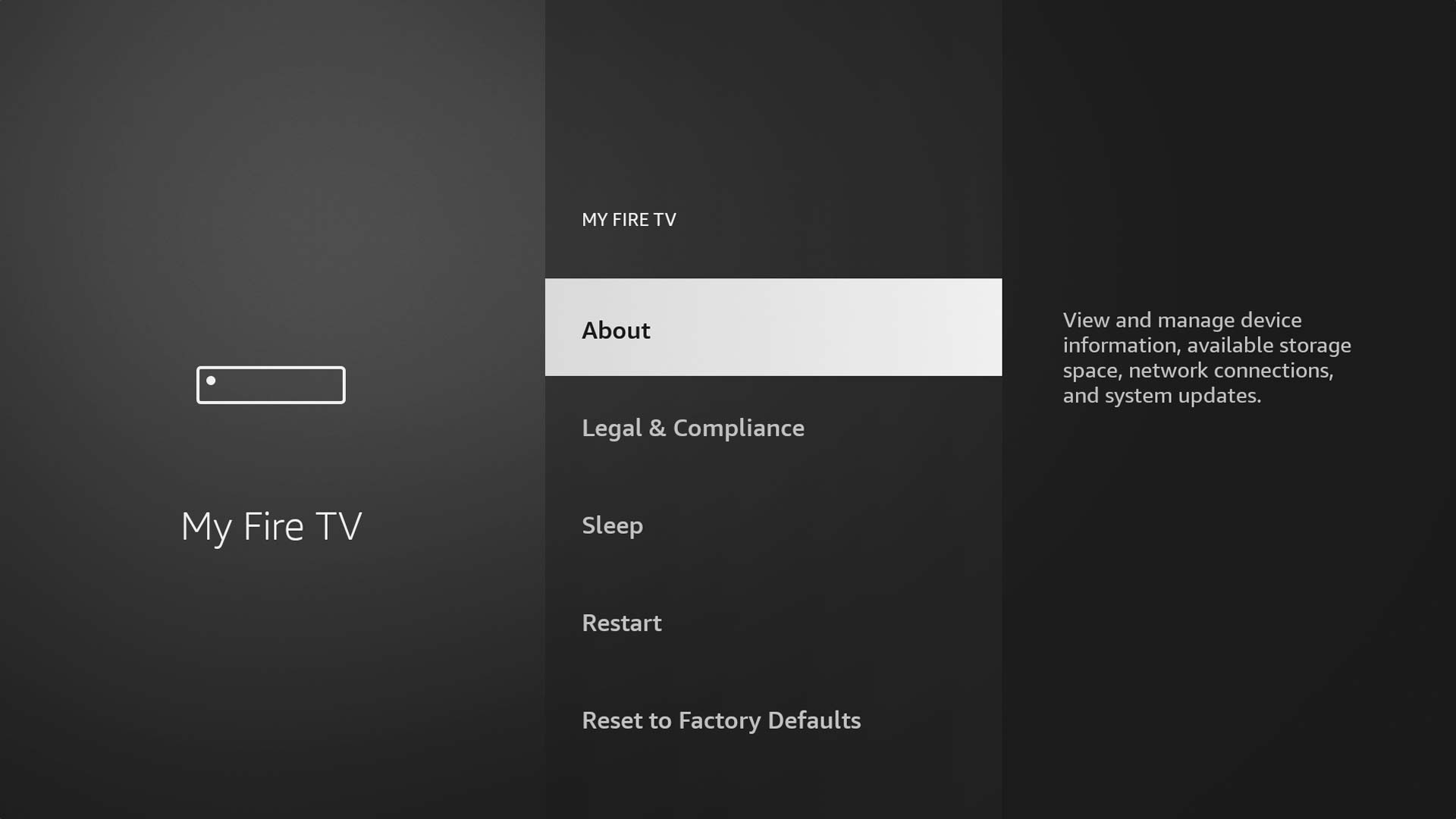
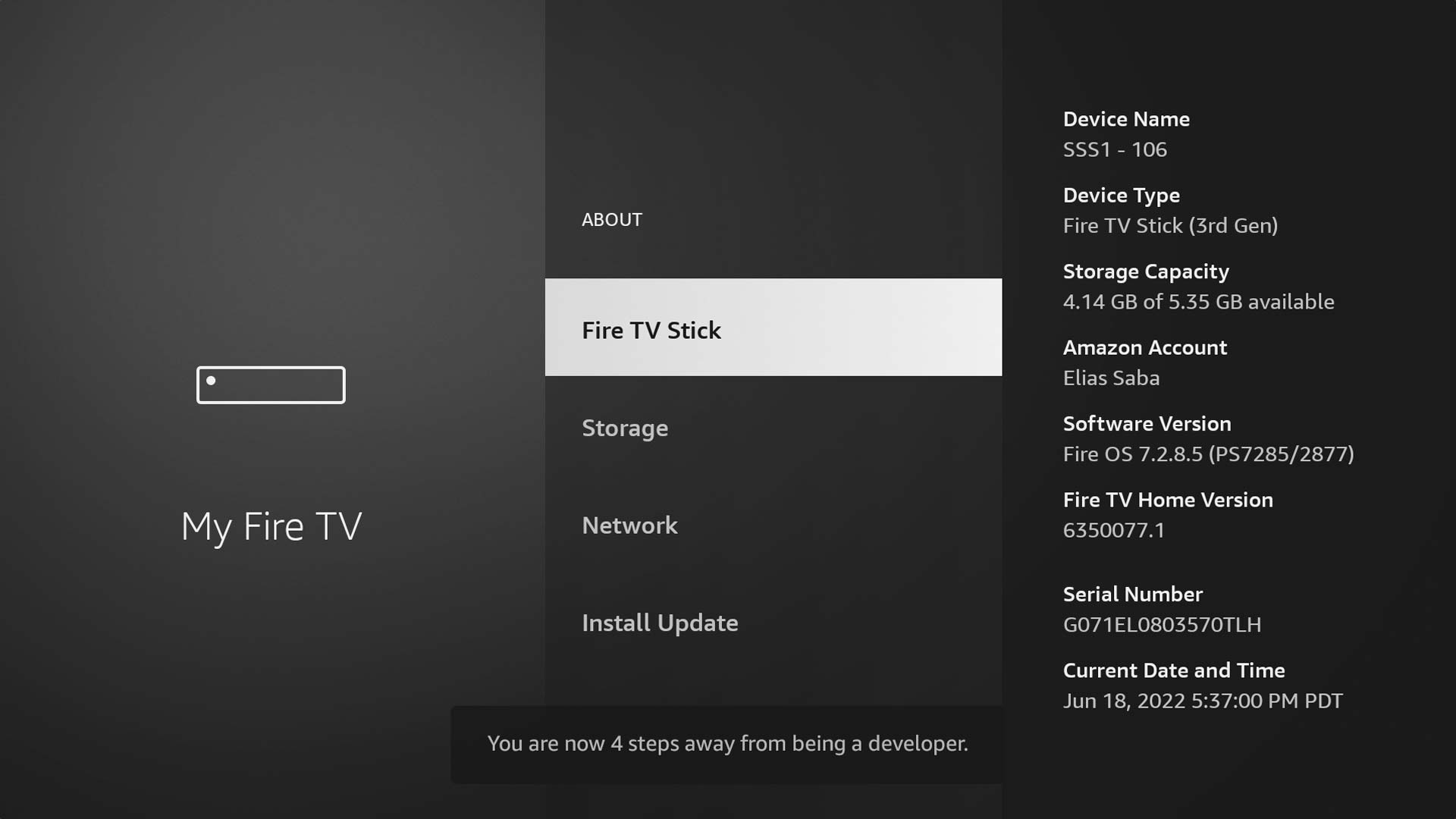
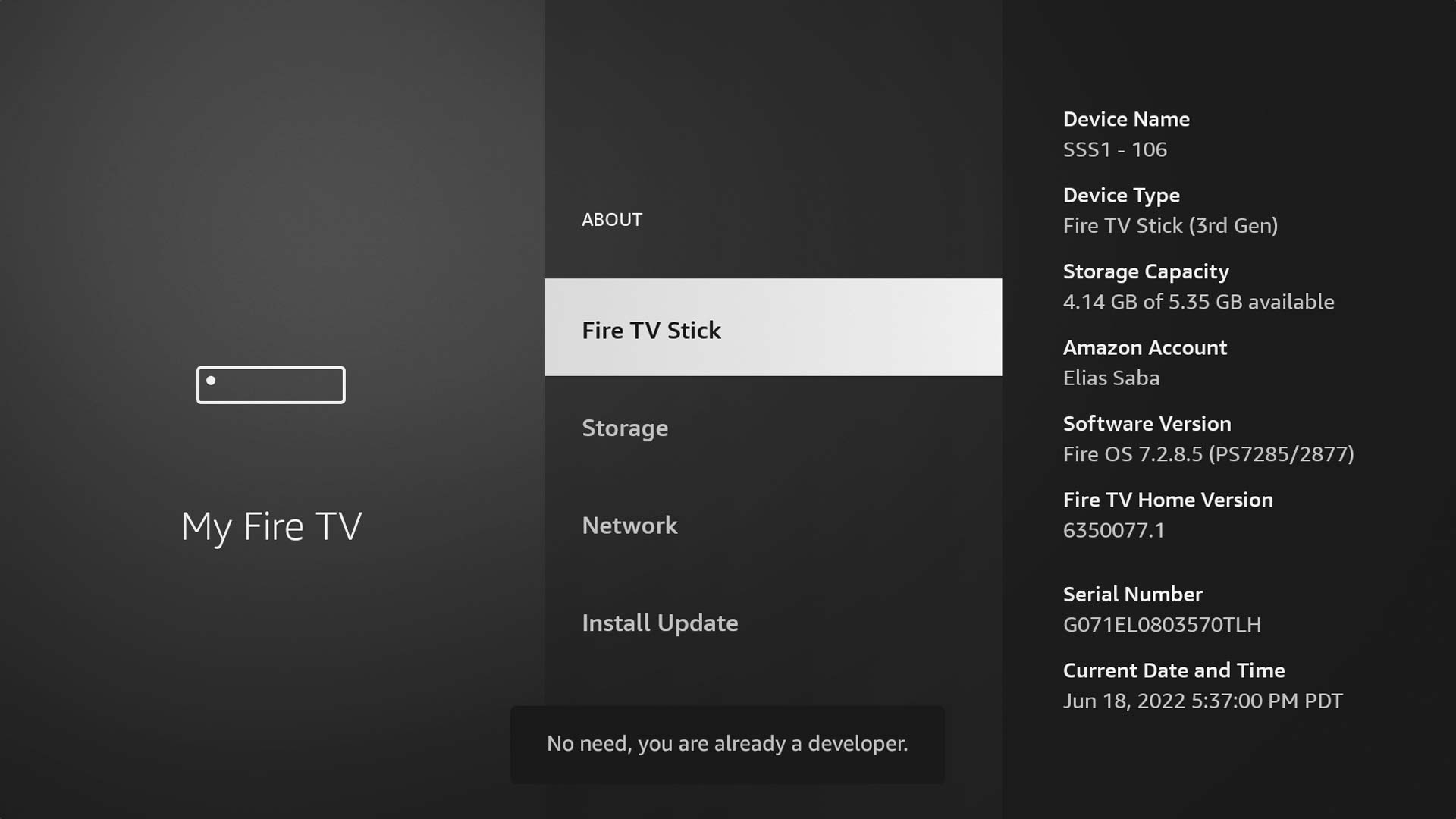
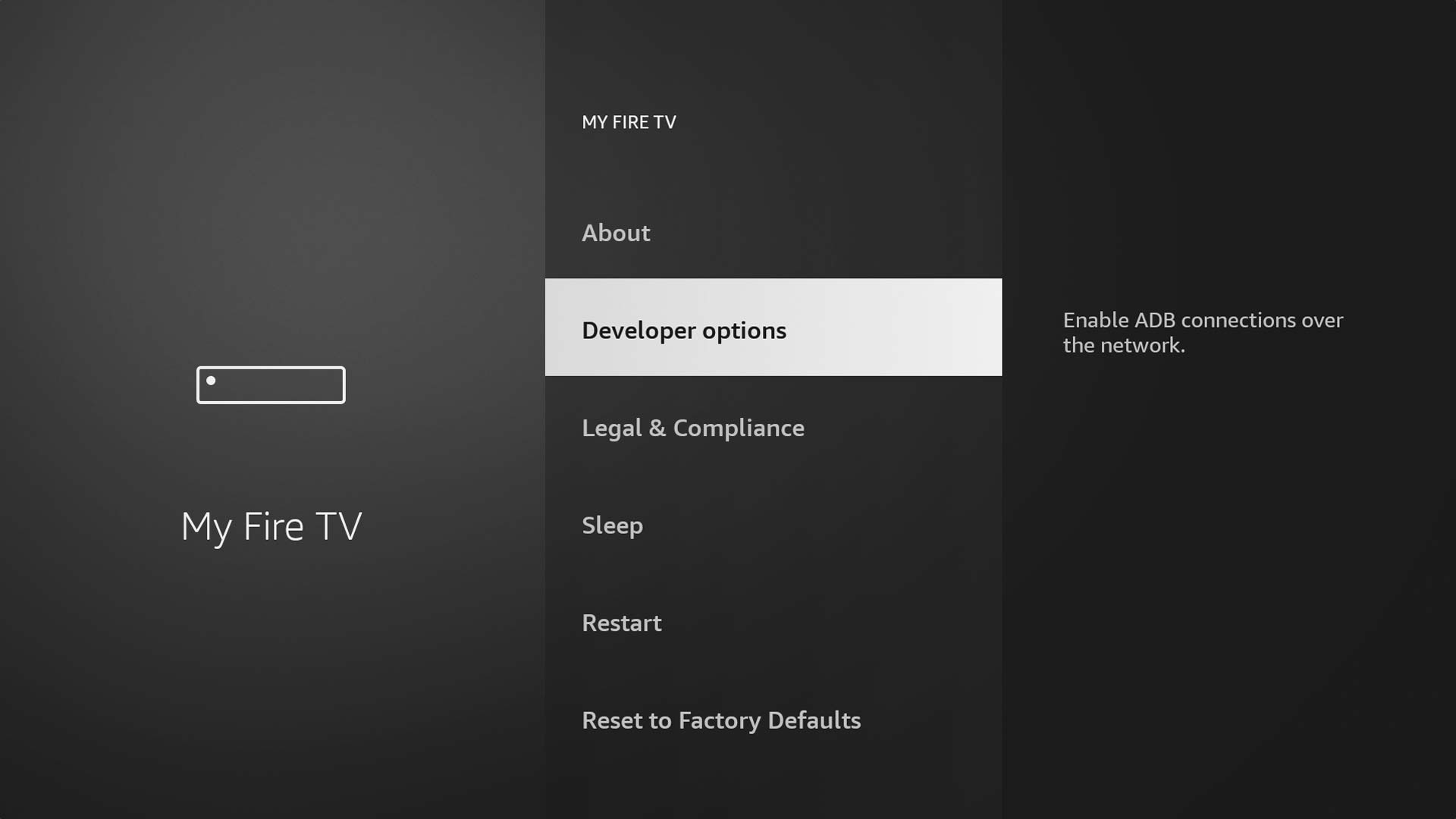
How to do it:
- Go to Settings on your Firestick home screen
- Select My Fire TV
- Tap Developer Options
- Toggle Apps from Unknown Sources to ON and confirm
Use the free Downloader app from the Amazon App Store to sideload Blink Player Lite.
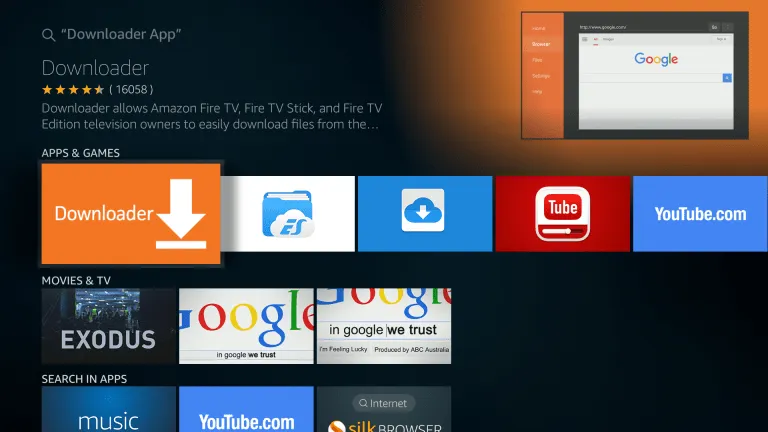
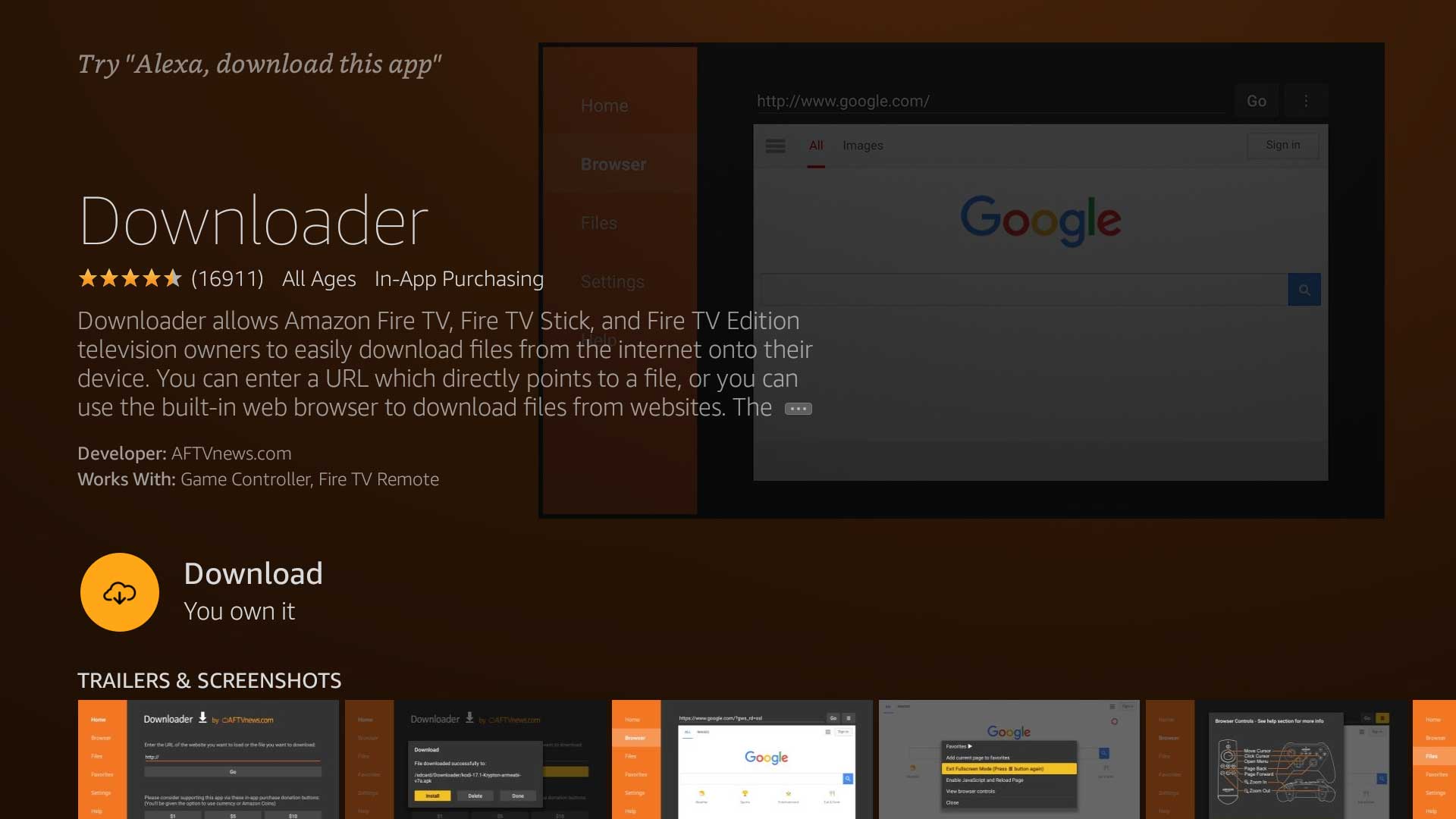
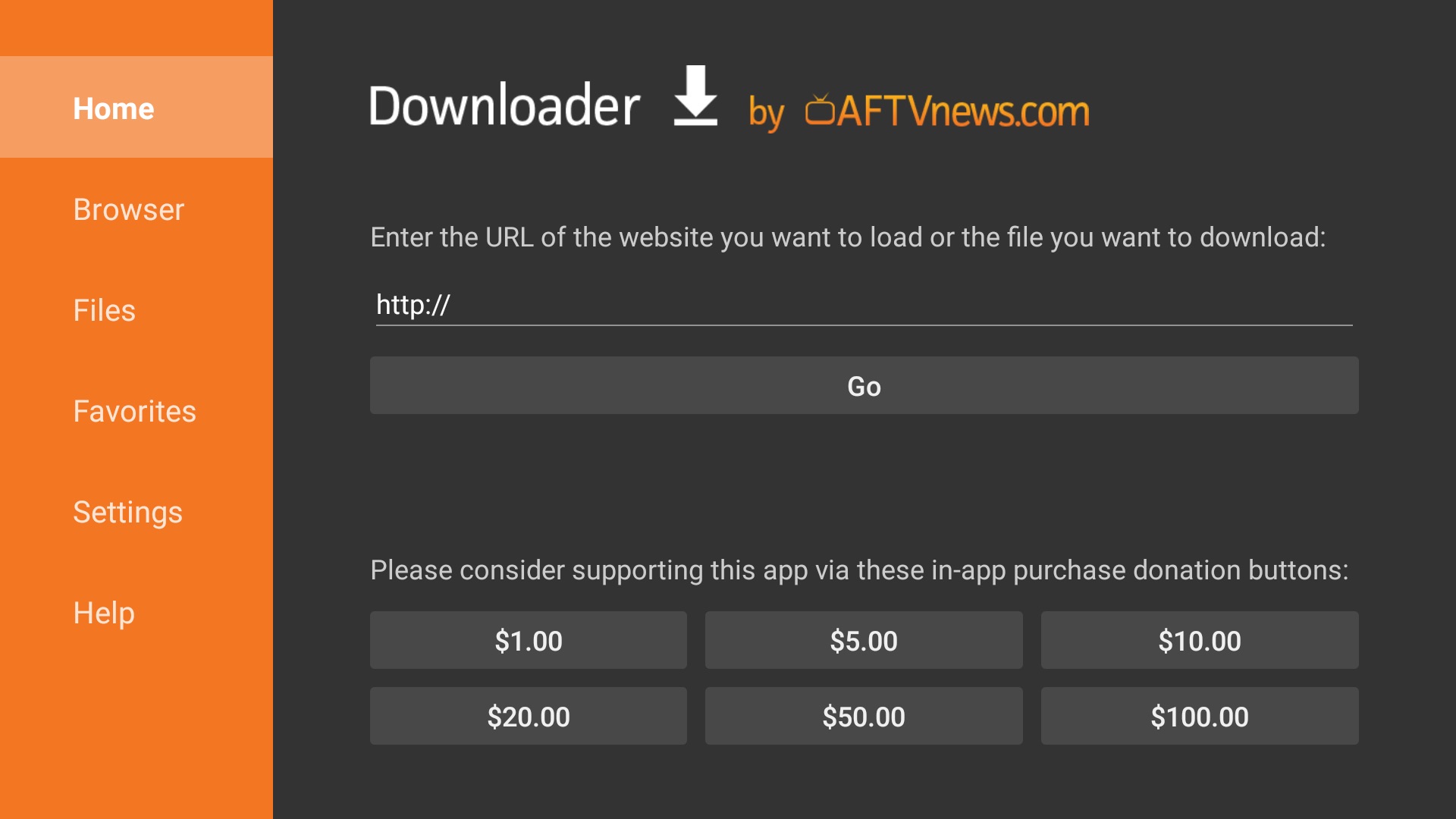
How to do it:
- From the home screen tap the Search icon (🔍)
- Type Downloader and select the orange Downloader app
- Tap Get or Download — it is free
- Once installed, open the Downloader app
Use the Downloader app to navigate to the official Blink Player website and download the Fire TV APK.
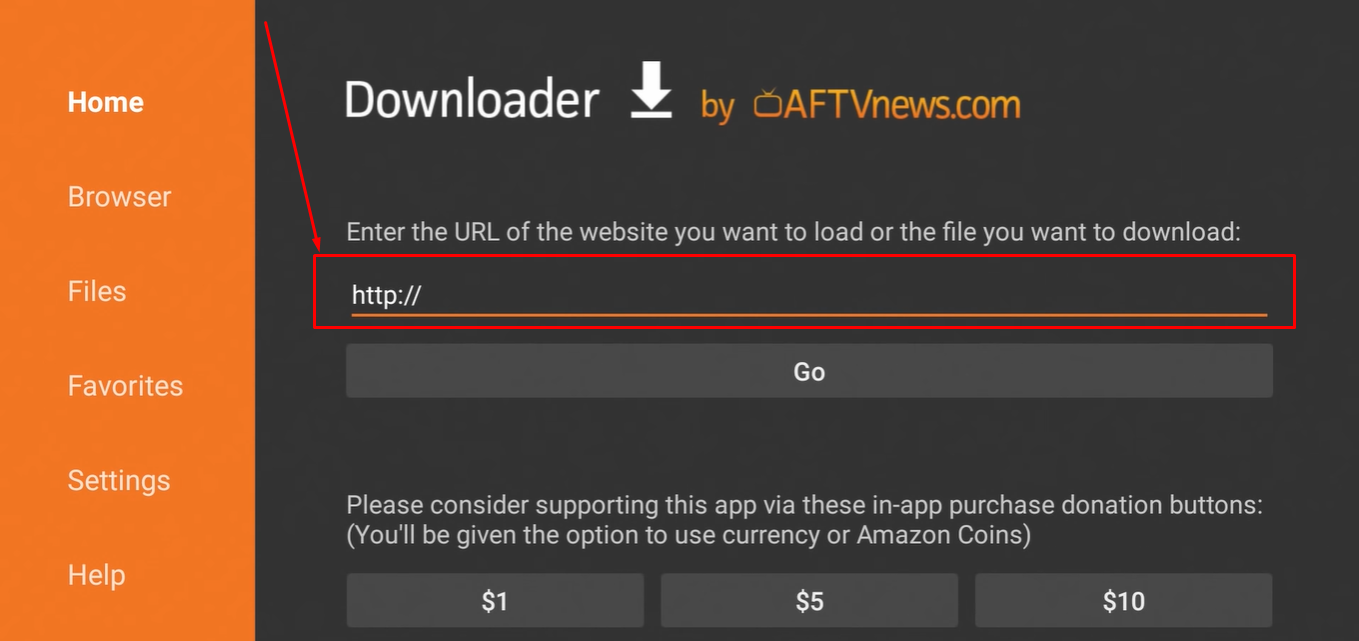
How to do it:
- Open Downloader on your Firestick
- In the URL bar type iptvblinkplayer.com and press Go
- On the website navigate to the Downloads section
- Tap the Fire TV / Firestick APK download button
- When the download completes tap Install on the prompt that appears
- Tap Done when installation finishes — then delete the installation files
Launch the app and enter your IPTV Nords Xtream Codes credentials. Make sure you have your Username, Password and Server URL from your IPTV Nords welcome email.
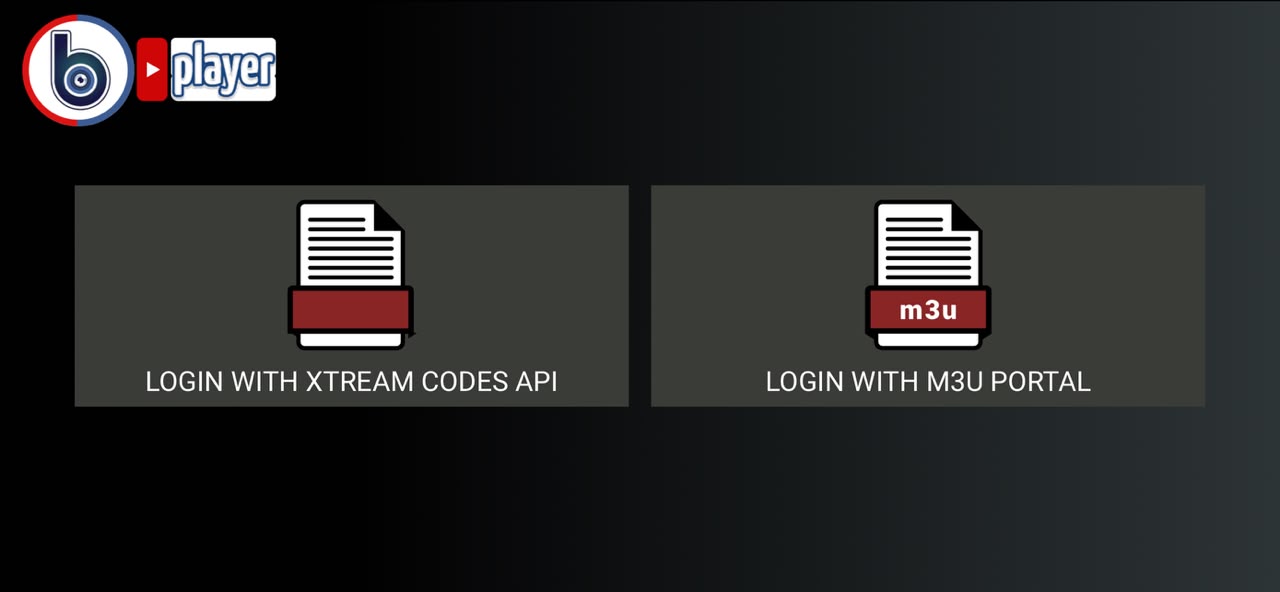
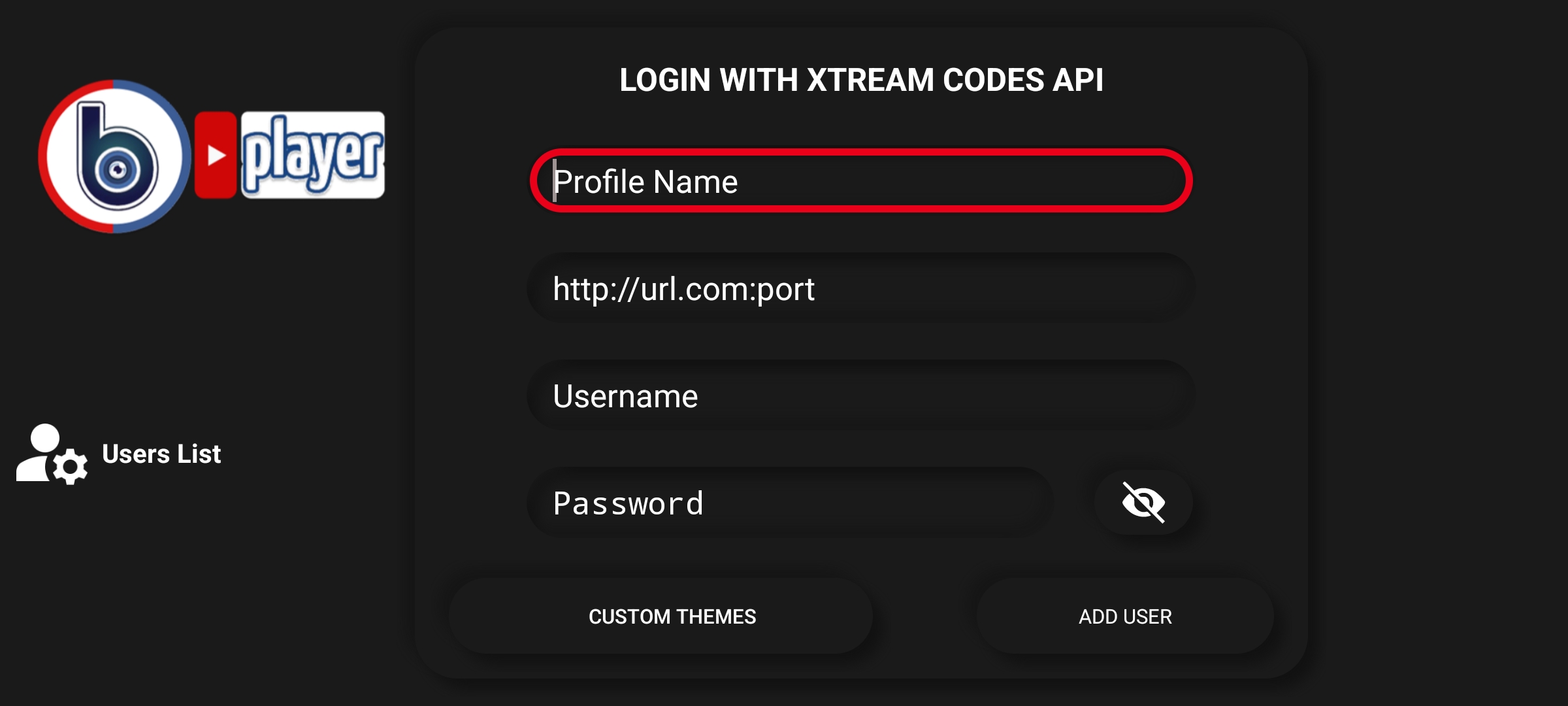
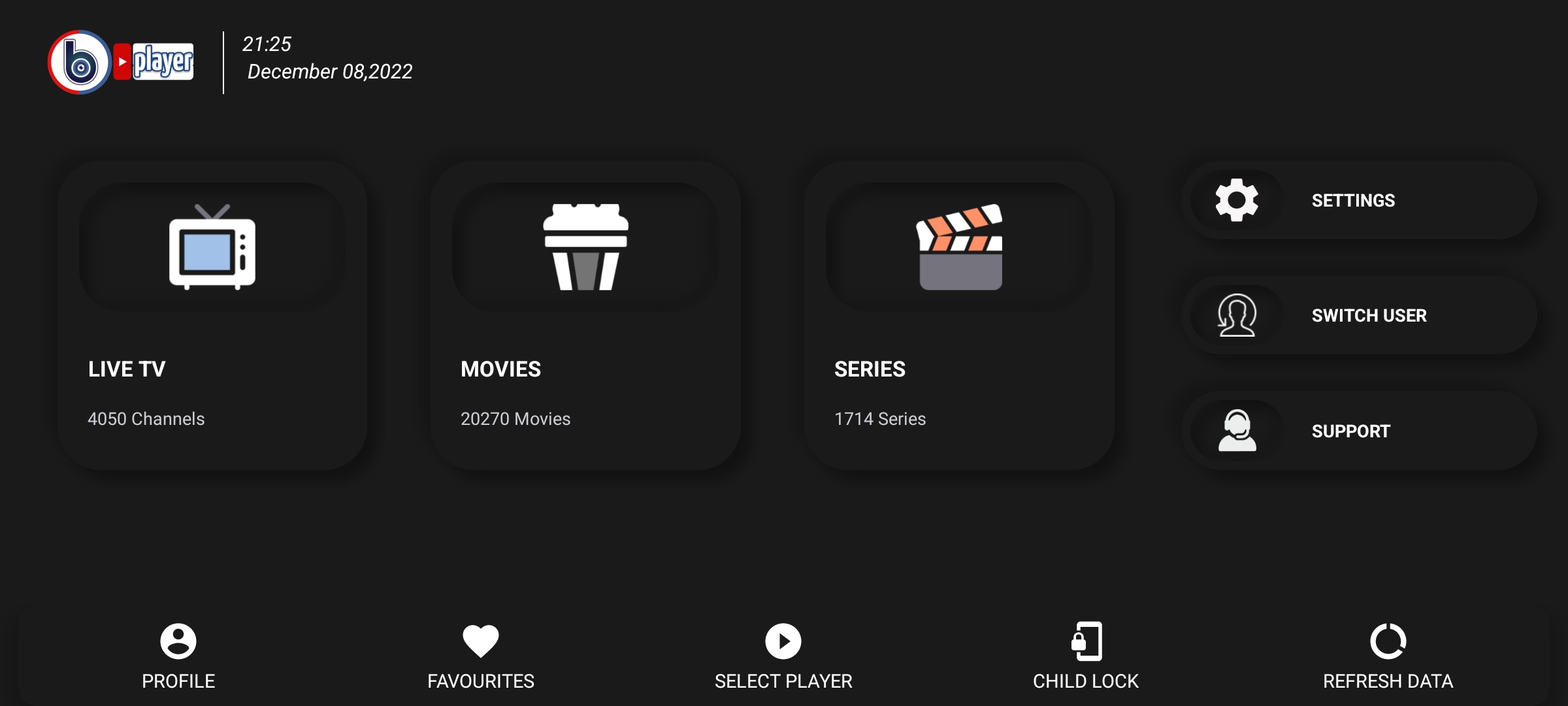
How to do it:
- Find Blink Player Lite in your Firestick apps — it may be under Your Apps & Channels → See All
- Open the app
- Select Login with Xtream Codes
- Enter your IPTV Nords Username
- Enter your IPTV Nords Password
- Enter your IPTV Nords Server URL (e.g. http://iptvnords.live:8080)
- Tap Login and wait 10–30 seconds for all channels to load
All your IPTV Nords channels are loaded. Use your Firestick remote to navigate categories, search channels and access movies and series with full season and episode listings.
How to do it:
- Use the remote to browse Live TV channels sorted by category
- Navigate to Movies for the on-demand film library
- Navigate to Series to browse TV shows with seasons and episodes
- Use the Search function to find specific channels or content quickly
- Press OK on any channel or title to start watching