





✓ Step-by-step guide
Install IPTV Player Live
on Apple TV
Follow these 4 simple steps to get IPTV Nords running on your Apple TV with IPTV Player Live. Setup takes around ~5 minutes.
1
Download IPTV Player Live from the App Store
'IPTV Player Live: M3U & Xtream' by ZanApps is a free app syncing across Apple TV, iPhone, iPad and Mac.
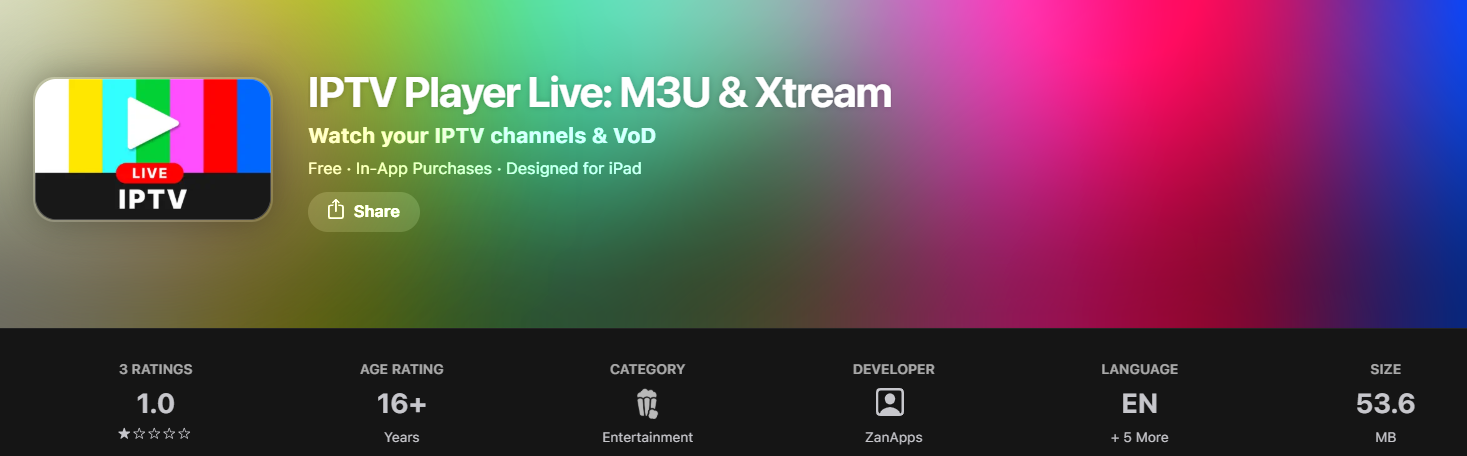
How to do it:
- Open the App Store on your device
- Search for IPTV Player Live: M3U & Xtream by ZanApps
- Tap Get — the app is free
- Open the app once installed
2
Add Your IPTV Nords Playlist
Tap the + button and enter your M3U URL or Xtream Codes. The app syncs playlists across all your Apple devices.
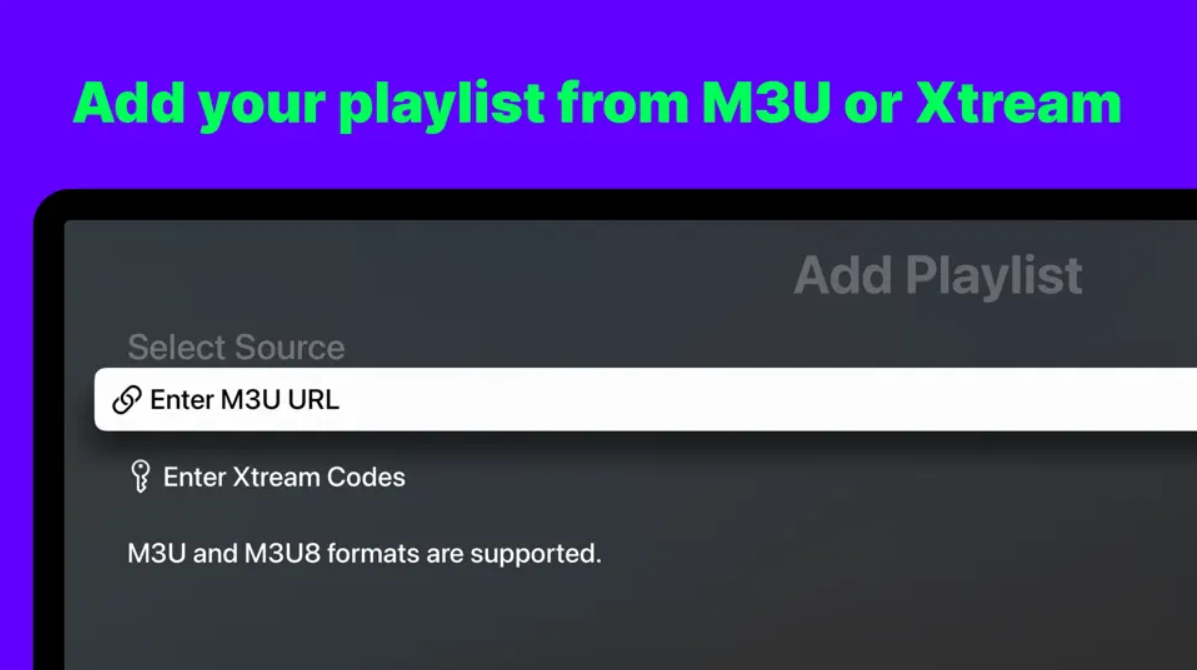
How to do it:
- Open IPTV Player Live
- Tap the + button to add a new playlist
- Select M3U URL or Xtream Codes
3
Enter Your IPTV Nords M3U URL
Paste your M3U URL from your IPTV Nords welcome email. Your playlist syncs to all your Apple devices automatically.
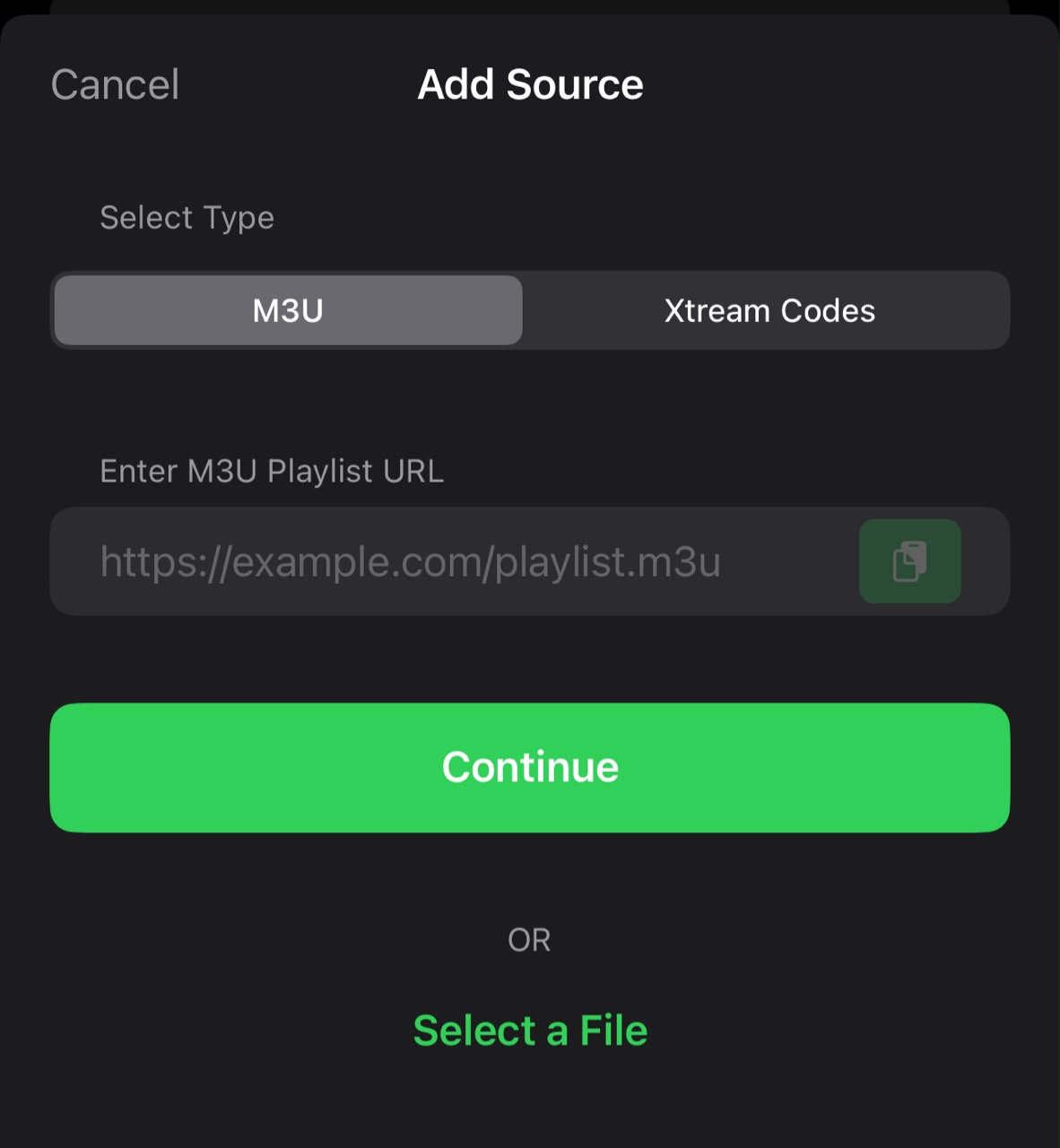
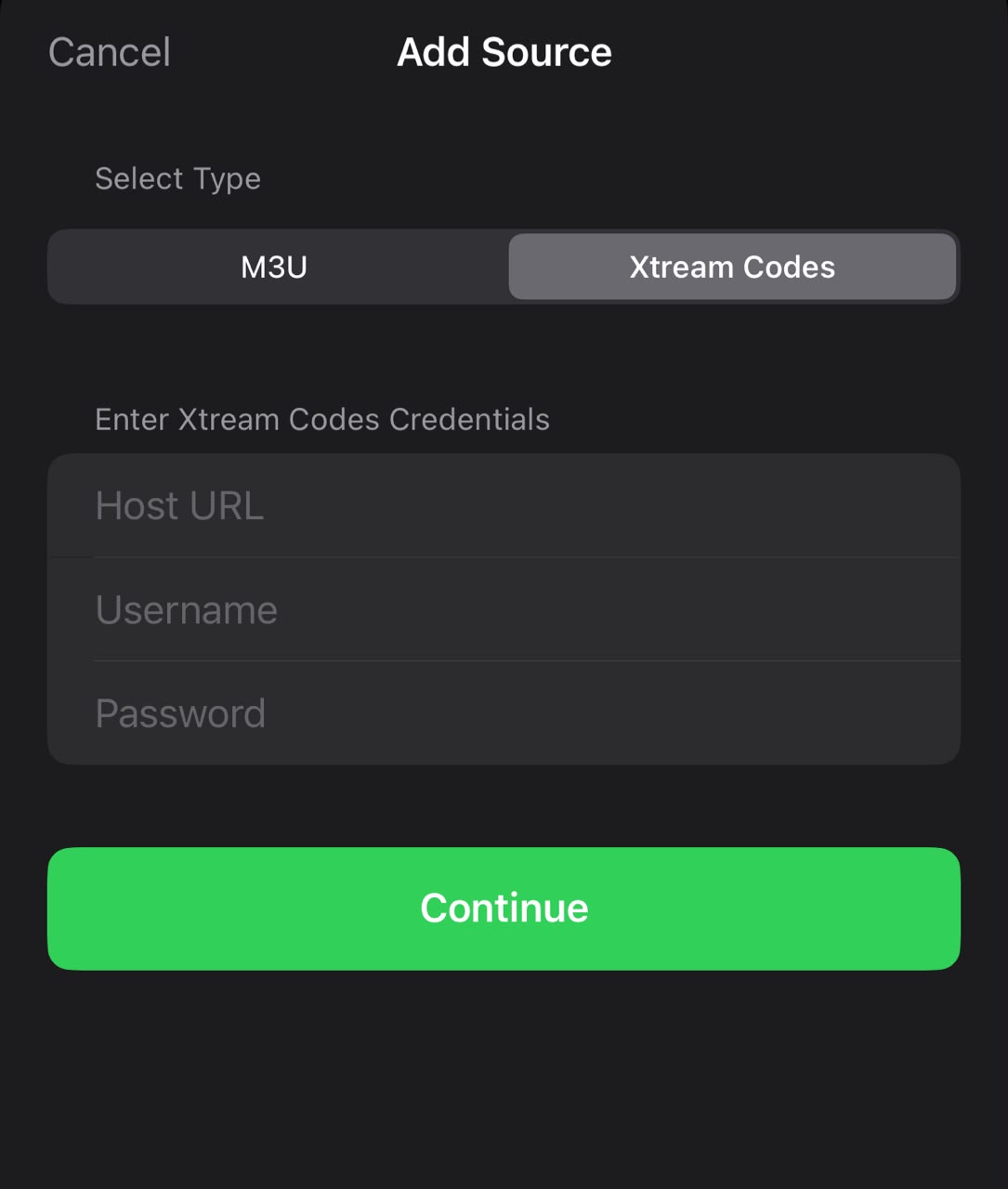
How to do it:
- Paste your IPTV Nords M3U URL:
http://server.iptvnords.com:PORT/get.php?username=XXXX&password=XXXX&type=m3u
- Or enter your Xtream Codes username, password and server URL
- Tap Save — your playlist loads on all your Apple devices automatically
📧 Your M3U URL is in your IPTV Nords welcome email. Contact live chat support if you need it resent.
4
Watch with PiP, AirPlay and AI Suggestions
IPTV Player Live includes Picture-in-Picture, AirPlay casting, AI content suggestions and full EPG.
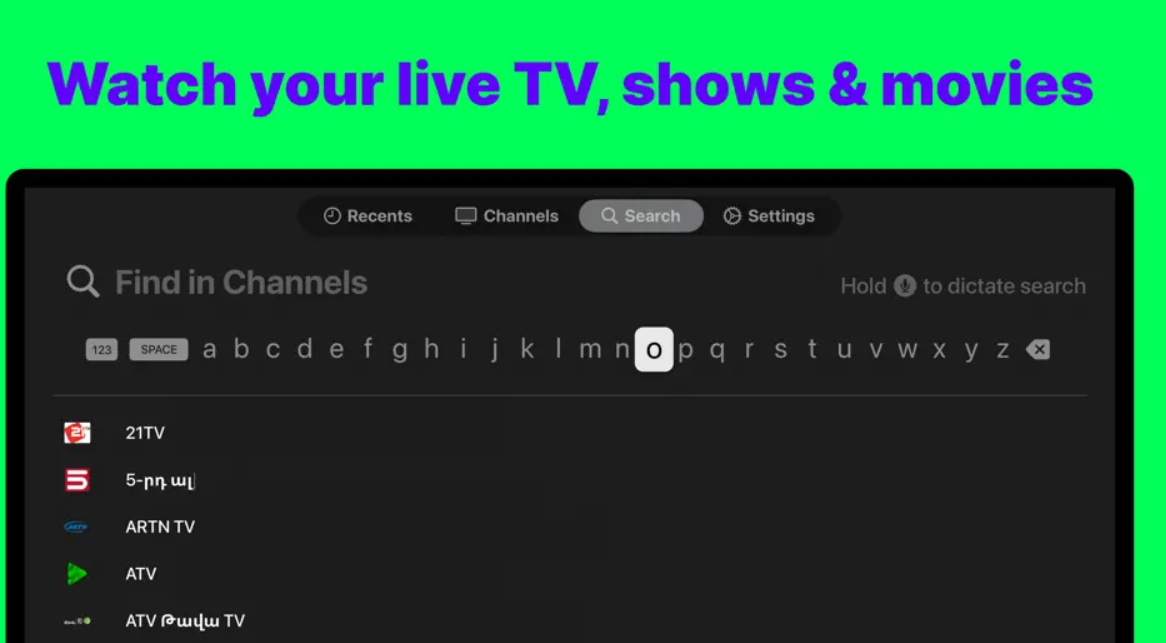
How to do it:
- Tap any channel to start watching in full screen
- Swipe up for Picture-in-Picture (PiP) while multitasking
- Tap the AirPlay icon to cast to your TV or Apple TV
- Browse AI Suggestions to discover content from your playlist
📡 Use AirPlay to mirror from your iPhone or iPad to your Apple TV or any AirPlay-enabled screen.