





✓ Step-by-step guide
Install Blink Player Lite
on Android Box
Follow these steps to get IPTV Nords running on your Android Box with Blink Player Lite.
1
Install Blink Player Lite from Google Play
Blink Player Lite is available free on the Google Play Store for all Android Boxes running Android 5.0+.
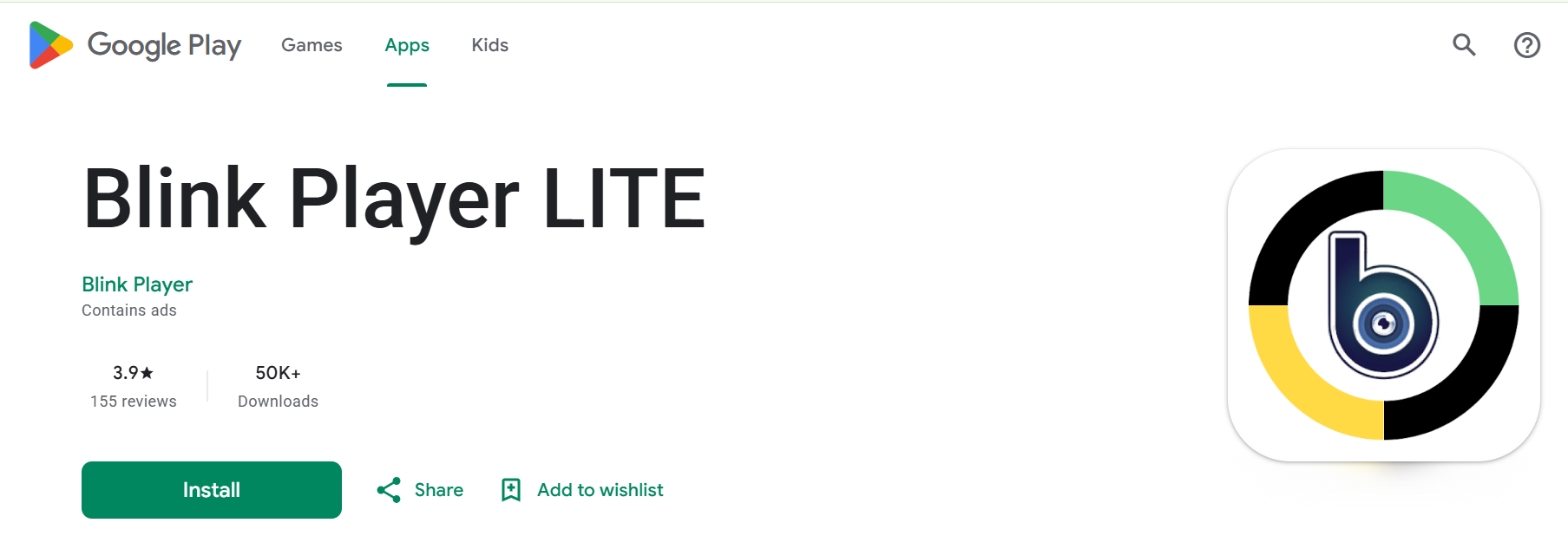
How to do it:
- Open Google Play Store on your Android Box
- Search for Blink Player Lite
- Tap Install — the app is free
- Open the app once installation completes
2
Open Blink Player Lite and Select Login
The app uses Xtream Codes API login. Tap Login and enter your IPTV Nords credentials.
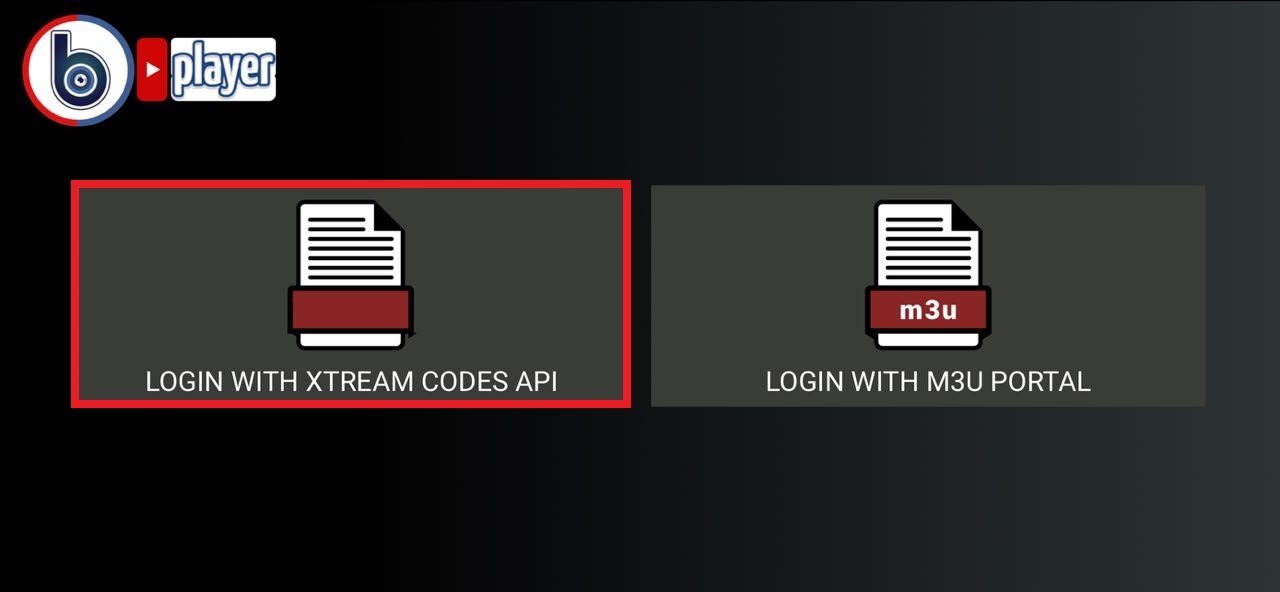
How to do it:
- Open Blink Player Lite
- Tap Login with Xtream Codes
- You will be prompted for your Username, Password and Server URL from your IPTV Nords welcome email
3
Enter Your IPTV Nords Xtream Codes Credentials
Enter the Xtream Codes login details from your IPTV Nords welcome email. These are different from your M3U URL.
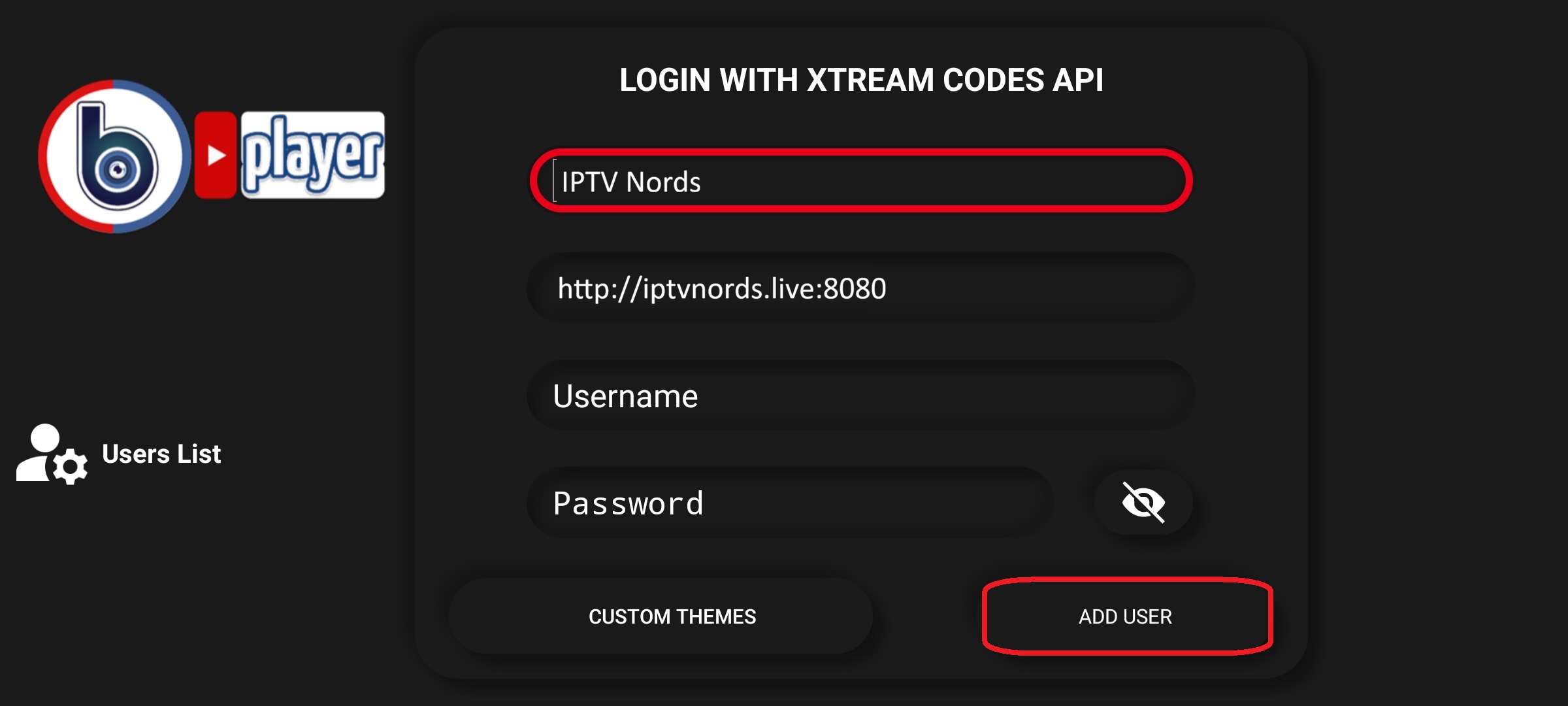
How to do it:
- Enter your IPTV Nords Username
- Enter your IPTV Nords Password
- Enter your IPTV Nords Server URL (e.g. http://server.iptvnords.com:PORT)
- Tap Login and wait for channels to load
📧 Your Credentials are in your IPTV Nords welcome email. Contact live chat if you need it resent.
4
Browse Live TV, Movies and Series
All your IPTV Nords channels are loaded with categories, series with episodes and favourites.
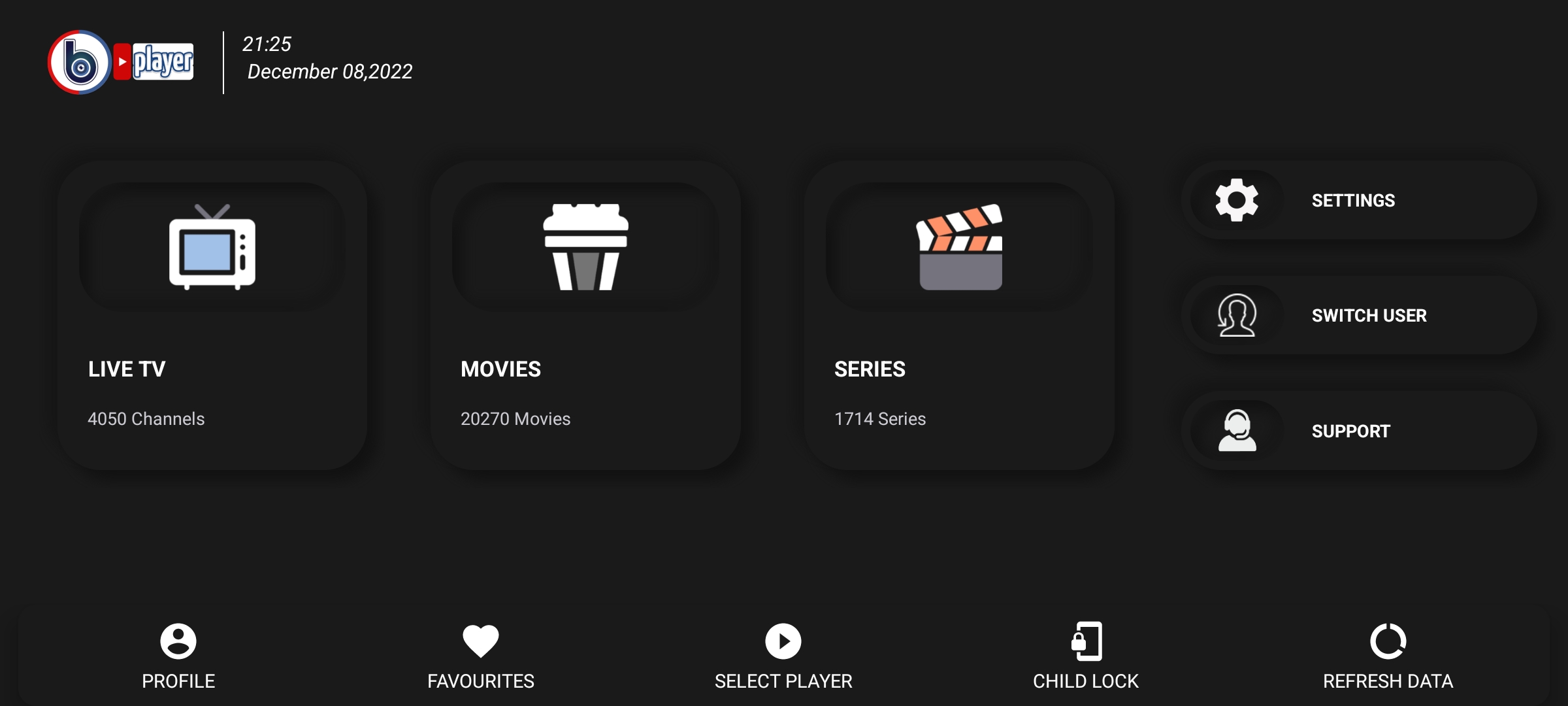
How to do it:
- Browse Live TV channels sorted by category
- Navigate to Movies and Series with season and episode info
- Use the Search function to find channels quickly
- Mark channels as Favourites for quick access
💡 For best quality set stream to HD or FHD. Our servers support up to 4K on compatible devices.